
Deskew PDF Online Free
Deskew PDF scans: crooked pages found and turned straight automatically.
- No upload
- Automatic
- No sign-up
- No quality lost

Deskew PDF files when pages were fed into the scanner at an angle or photographed slightly askew. Each page is checked for text that runs downhill or uphill, the preview shows it straightened, and only the pages that need it are turned. Nothing is uploaded.
How to Deskew PDF Scans
Every page is checked as soon as the file opens.
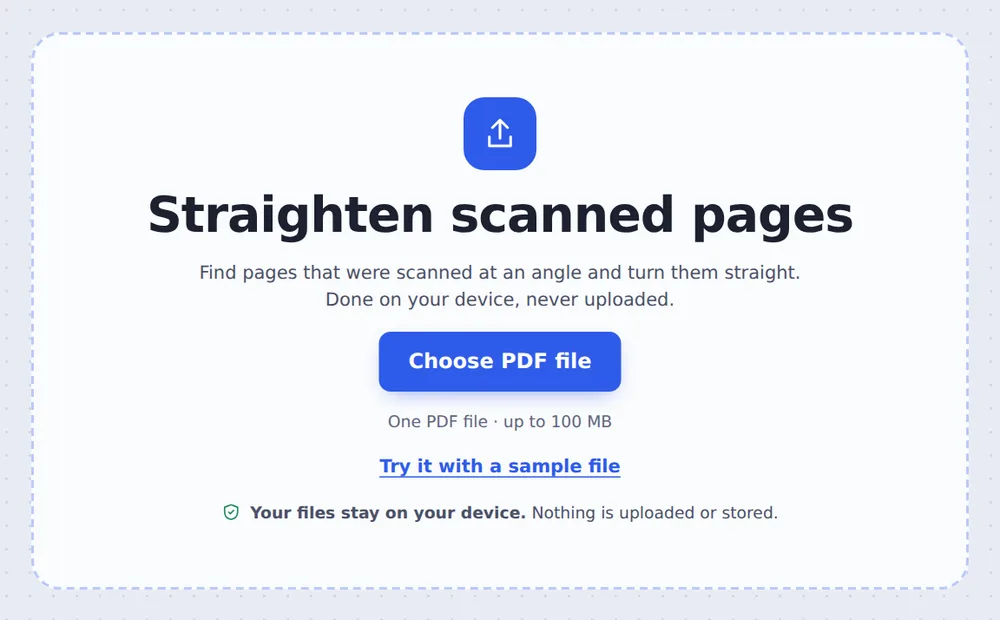
Choose your scanned PDF
Click Choose PDF file or drop the scan on the tool above.
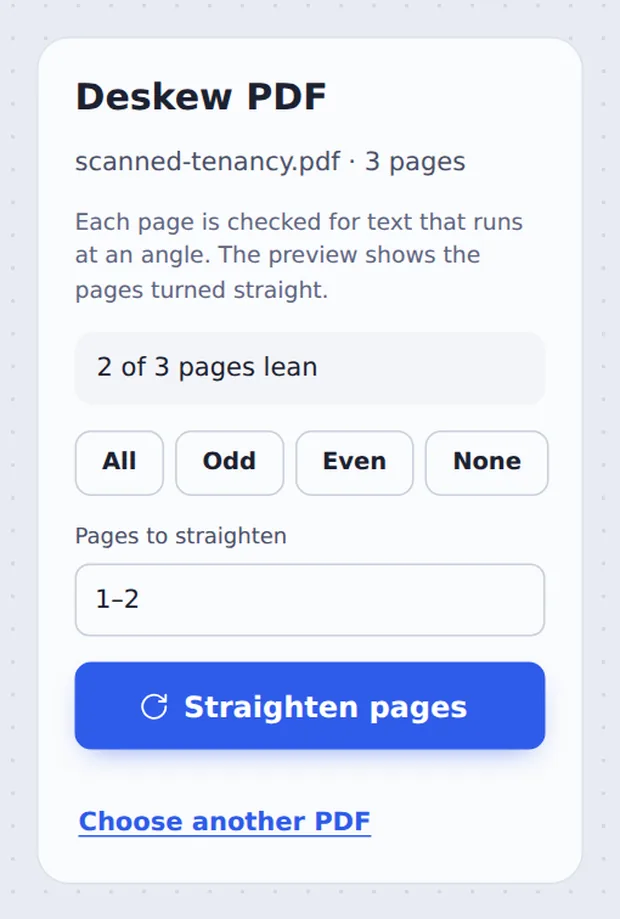
Check the angles
Each leaning page shows its angle and is selected. The thumbnails show the pages straightened. Click a page to leave it as it is, then click Straighten pages.
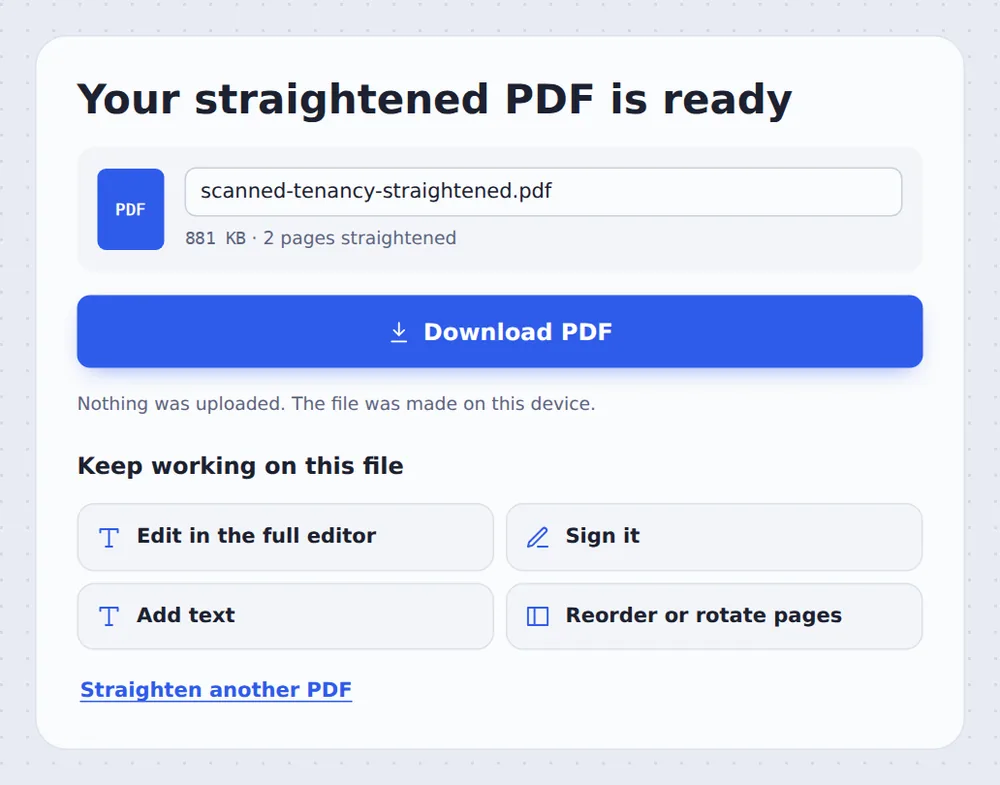
Download the result
Click Download PDF.
How Deskewing Works
Lines of text are straight. When a page is scanned at an angle, the lines run slightly downhill or uphill. The tool looks for the angle at which the lines of text line up best, which tells it how far the page leans.
Pages that lean are turned back by that angle; pages that are already straight are left alone. When you deskew PDF scans here, the page is turned rather than scanned again, so every bit of detail is kept.
It works best on pages with several lines of text. For pages that are sideways or upside down, use Rotate PDF.
Finds the angle
Measured from the lines of text.
Turns it back
Only pages that lean.
Full quality
Nothing is rescanned.
See the Angle of Every Page
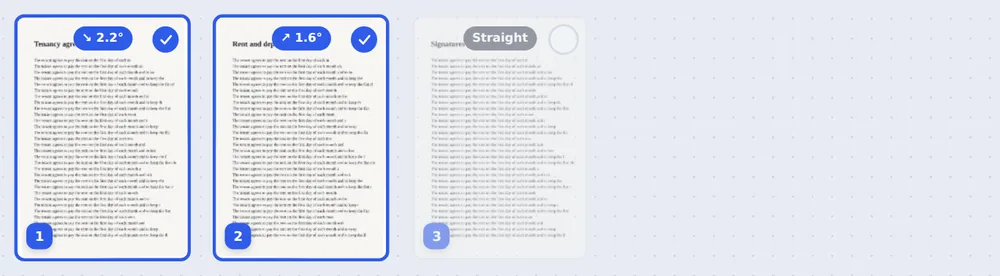
Leaning pages show their angle; straight pages are labelled Straight.
Deskew PDF Scans Without Uploading
Scanned contracts and forms are private. TickPDF straightens them inside your own browser tab, so they never leave your device.
There is no account and no copy on our side.
- 0files uploadedYour PDF stays on your device.
- 0copies keptWe never see your pages.
- 0accounts neededOpen the page and start.

Works on iPhone, Android or Computer
- Windows
- Mac
- Linux
- Chromebook
- iPhone
- iPad
- Android
Open this page in your phone's browser, choose the scan and tap Straighten pages.
It works the same on Windows, Mac, Linux and Chromebook, with nothing to install.
Scans That Come Out Crooked
People deskew PDF scans from feeders, phones and old archives.
Document feeders
Pages pulled in at an angle.
Phone scans
Pages photographed off-straight.
Books
Pages pressed unevenly on the glass.
Archives
Old scans before sharing them.
Forms
Neater copies for submissions.
Before OCR
Straight text is read more accurately.
Tips for Straighter Scans
- Square the stackLine up the paper guides on the feeder.
- Sideways pagesUse Rotate PDF for 90 or 180 degree turns.
- Trim the edgesCrop PDF removes borders after straightening.
- Mixed pagesClick pages to keep them unchanged.
- Compress afterMake the straightened scan smaller.
- Keep the originalYour original PDF is not changed.
More PDF Tools
They all run in the same private editor.
Rotate PDF
Turn pages the right way up.
Crop PDF
Trim the margins.
Compress PDF
Make the file smaller.
Black and white PDF
Grey or pure black and white.
Split PDF in half
Cut book spreads in two.
TIFF to PDF
Turn scans into a PDF.

Deskew PDF: Frequently Asked Questions
Answers to what people ask about straightening scans.
How do I deskew a PDF?
Choose your scanned PDF at the top of this page. Every page is checked for text that runs at an angle, and the preview shows them straight. Click Straighten pages.
Can I deskew a PDF for free?
Yes. The free plan works on PDFs up to 50 pages and 20 MB, with 3 downloads a day, no account and no watermark. TickPDF Pro removes these limits.
Can I deskew a PDF online?
Yes. The tool runs in your web browser on Windows, Mac, Linux and Chromebook, with nothing to install. Open your PDF at the top of this page to start.
How do I deskew a PDF on my phone?
Open this page in your phone's browser, choose the PDF and tap Straighten pages. There is no app to install.
Can I deskew a PDF without Adobe Acrobat?
Yes. You do not need Acrobat or any other software. The tool runs in your browser, and the new PDF opens in Acrobat, Preview, Chrome and every other PDF reader.
Is it safe to deskew a PDF online?
Yes. Your PDF is not uploaded. It is opened and processed inside your browser tab and never sent to our servers, so nobody else sees it. Close the tab and nothing is left behind.
Does straightening lower the quality?
No. The scan is turned, not scanned again, so it keeps all its detail. Pages that are already straight are left alone.
What is the easiest way to deskew a PDF?
Open the scan above and click Straighten pages. Leaning pages are found and selected for you.
Ready to Straighten Your Scan?
No account, no upload and no watermark: choose your PDF at the top of this page.
Open the toolTickPDF straightens crooked pages on your own device. Choose your file and deskew PDF scans today.