
Add Bookmarks to PDF Online Free
Add bookmarks to PDF files so readers can jump straight to each chapter.
- No upload
- Click to add
- No sign-up
- Nested sections

Add bookmarks to PDF manuals, reports, theses and bundles so readers can jump to any chapter from the side panel. Click the page where a chapter starts, and a bookmark is made from its heading. Rename, nest or remove them, then save. Nothing is uploaded.
How to Add Bookmarks to PDF Files
Bookmarks already in the file are loaded so you can edit them.

Choose your PDF
Click Choose PDF file or drop the PDF on the tool above.

Click the chapter pages
Click each page where a chapter starts. A bookmark appears in the list, named after the page heading. Type to rename it, click → to nest it, or × to remove it.
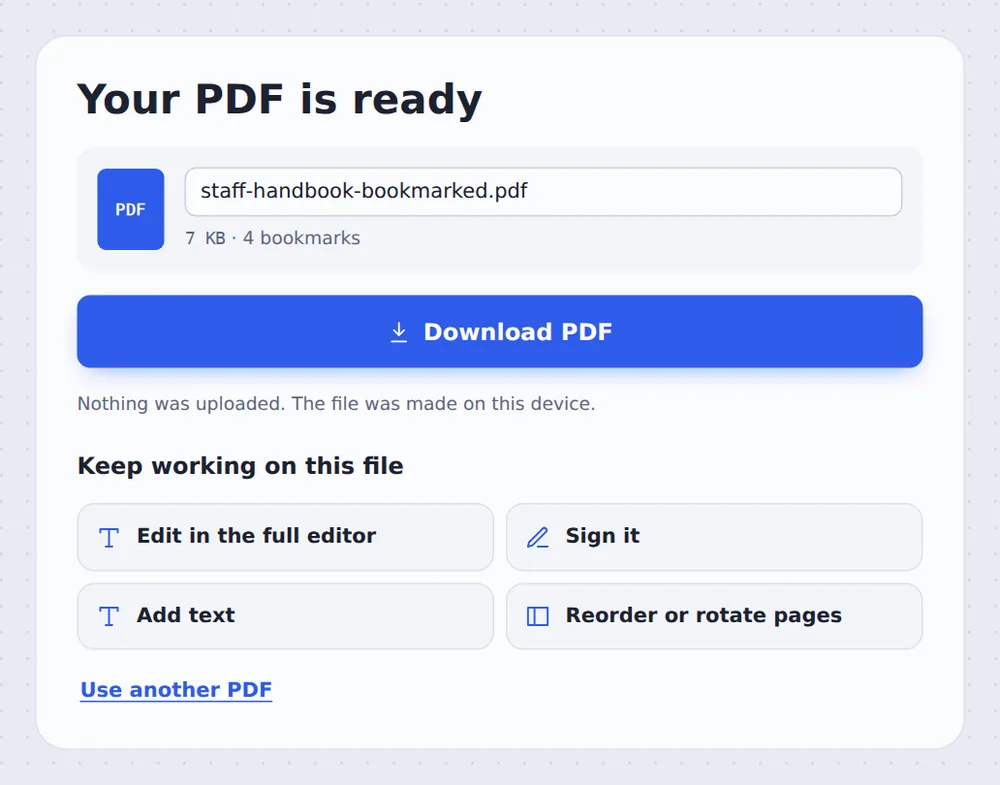
Save and download
Click Save bookmarks and download the PDF. It opens with the bookmarks panel showing.
Why Bookmarks Help
Bookmarks, also called the outline, are the clickable table of contents in the side panel of every PDF reader. In a long document they save readers from scrolling through dozens of pages.
Many PDFs lose their bookmarks when they are scanned, merged or exported. When you add bookmarks to PDF files here, you rebuild that navigation in a minute, with names taken from the headings on each page.
Nested bookmarks let you add sections inside chapters, just like a real table of contents.
One click
Click a page to bookmark it.
Named for you
From the heading on the page.
Chapters and sections
Two levels of nesting.
Bookmarked Pages Are Marked
A ribbon shows every page that has a bookmark.

Add Bookmarks to PDF Files Without Uploading
TickPDF writes the bookmarks inside your own browser tab, so your documents never leave your device.
There is no account and no copy on our side.
- 0files uploadedYour PDF stays on your device.
- 0copies keptWe never see your pages.
- 0accounts neededOpen the page and start.

Works on iPhone, Android or Computer
- Windows
- Mac
- Linux
- Chromebook
- iPhone
- iPad
- Android
Open this page in your phone's browser, choose the PDF, tap the chapter pages and tap Save bookmarks.
It works the same on Windows, Mac, Linux and Chromebook, with nothing to install.
Documents That Need Bookmarks
People add bookmarks to PDF files that are longer than a few pages.
Manuals and handbooks
Jump to the right section.
Theses
Chapters as universities expect.
Merged bundles
One bookmark per document.
Reports
Sections for busy readers.
Legal bundles
Exhibits easy to find.
Scanned books
Navigation for scans.
Tips for a Good PDF Outline
- Short namesTwo to five words read best in the panel.
- Nest sectionsUse → to put sections under chapters.
- Merge firstJoin files, then bookmark each part.
- Split by chapterBookmarks also let you split by chapter later.
- Start freshRemove all bookmarks to rebuild the outline.
- Keep the originalYour original PDF is not changed.
More PDF Tools
They all run in the same private editor.
Split by bookmarks
One file per chapter.
Merge PDF
Join files into one document.
Add page numbers
Number the pages.
Header and footer
Add a title and page numbers.
PDF reader
Open and read PDFs online.
PDF Editor
Edit text, sign and annotate.

Add Bookmarks to PDF: Frequently Asked Questions
Answers to what people ask about PDF bookmarks.
How do I add bookmarks to a PDF?
Choose your PDF at the top of this page and click each page where a chapter starts. A bookmark is added with the heading of that page; rename it if you like, then click Save bookmarks.
Can I add bookmarks to a PDF for free?
Yes. The free plan works on PDFs up to 50 pages and 20 MB, with 3 downloads a day, no account and no watermark. TickPDF Pro removes these limits.
Can I add bookmarks to a PDF online?
Yes. The tool runs in your web browser on Windows, Mac, Linux and Chromebook, with nothing to install. Open your PDF at the top of this page to start.
How do I add bookmarks to a PDF on my phone?
Open this page in your phone's browser, choose the PDF, tap the pages to bookmark and tap Save bookmarks. There is no app to install.
Can I add bookmarks to a PDF without Adobe Acrobat?
Yes. You do not need Acrobat or any other software. The tool runs in your browser, and the new PDF opens in Acrobat, Preview, Chrome and every other PDF reader.
Is it safe to add bookmarks to a PDF online?
Yes. Your PDF is not uploaded. It is opened and processed inside your browser tab and never sent to our servers, so nobody else sees it. Close the tab and nothing is left behind.
Can I make bookmarks inside other bookmarks?
Yes. Click → next to a bookmark to put it under the one above, for sections inside a chapter.
What is the easiest way to add bookmarks to a PDF?
Open the PDF above, click the first page of each chapter and click Save bookmarks. The PDF opens with the bookmarks panel showing.
Ready to Add Bookmarks?
No account, no upload and no watermark: choose your PDF at the top of this page.
Open the toolTickPDF writes the outline on your own device. Choose your file and add bookmarks to PDF documents today.