
Optimize PDF for Web Online Free
Optimize PDF for web pages: the first page appears while the rest is still loading.
- No upload
- Fast web view
- No sign-up
- Pages unchanged

Optimize PDF for web before you put it on your website, in a help centre or behind a download link. The tool turns on fast web view, also called linearization, and repacks the file, so readers see page one straight away. Your PDF is never uploaded.
How to Optimize PDF for Web
There are no settings to get wrong.
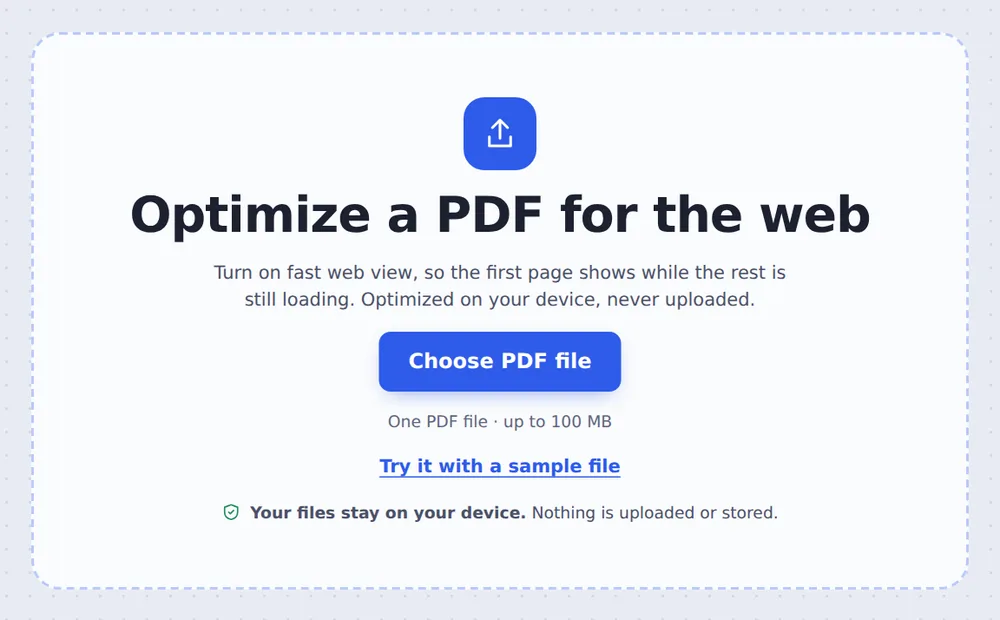
Choose your PDF
Click Choose PDF file or drop the PDF on the tool above.

Optimize it
Click Optimize PDF. Fast web view is turned on and the file structure is repacked.
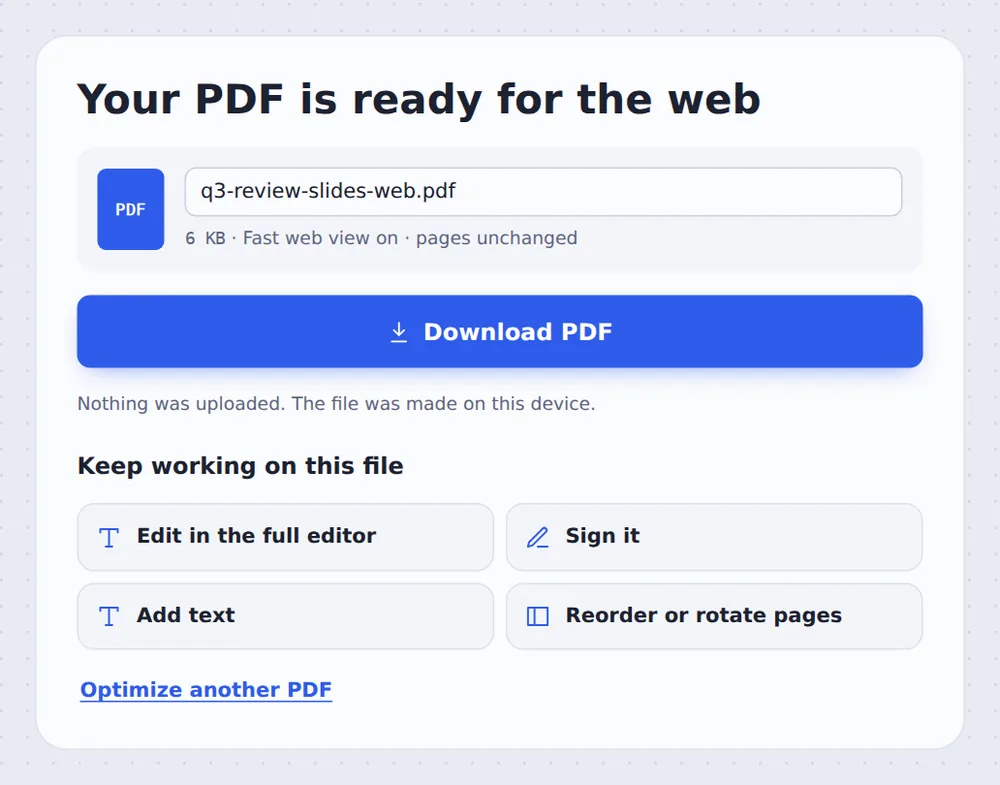
Download and upload to your site
Click Download PDF and replace the old file on your website.
What Does Fast Web View Do?
A normal PDF keeps its table of contents at the very end of the file. A browser has to download the whole document before it can show anything, so a 20 MB brochure means a long wait on a blank screen.
When you optimize PDF for web, the file is rearranged so everything needed for the first page comes first, followed by a map of where the other pages are. Browsers and PDF readers then show page one almost at once and fetch other pages as you scroll.
Adobe Acrobat calls this Fast Web View. The pages look exactly the same afterwards.
First page first
Readers see something straight away.
Page by page
Other pages load as people scroll.
Repacked
Small objects packed and compressed.
Fast Web View vs Compress PDF
Two different jobs that work well together.
| Fast web view | Compress PDF | |
|---|---|---|
| What it changes | The order of data in the file | The pictures inside |
| Best for | PDFs on websites | Email and upload limits |
| Page quality | Exactly the same | Pictures slightly softer |
| File size | About the same | Often much smaller |
Optimize PDF for Web Without Uploading
TickPDF does the work inside your own browser tab, so unpublished brochures, price lists and reports never leave your device.
There is no account and no copy on our side.
- 0files uploadedYour PDF stays on your device.
- 0copies keptWe never see your file.
- 0accounts neededOpen the page and start.

Works on iPhone, Android or Computer
- Windows
- Mac
- Linux
- Chromebook
- iPhone
- iPad
- Android
Open this page in your phone's browser, choose the PDF and tap Optimize PDF.
It works the same on Windows, Mac, Linux and Chromebook, with nothing to install.
PDFs That Should Load Fast
Anything people open from a link.
Brochures and catalogues
Large files people browse online.
Menus and price lists
Opened on phones over mobile data.
Course material
Handouts in a learning platform.
Reports
Annual reports and white papers on your site.
Help centres
Manuals and guides customers open.
Email links
Files shared by link instead of attachment.
Tips to Optimize PDF for Web Pages
- Compress firstMake big scans smaller, then optimize the smaller copy.
- Set a titleUse Edit PDF Metadata so the browser tab shows a real title.
- Replace, don't addUpload it over the old file to keep your links working.
- Remove extra pagesFewer pages always load faster.
- Do it lastAny later edit can undo fast web view, so optimize last.
- Keep the originalYour original PDF is not changed.
More PDF Tools
They all run in the same private editor.
Compress PDF
Make the file smaller.
Edit PDF Metadata
Set the title for browser tabs.
Repair PDF
Fix a file that won't open.
Split PDF
Cut a big file into parts.
Protect PDF
Add a password.
Watermark PDF
Mark pages as DRAFT.

Optimize PDF for Web: Frequently Asked Questions
Answers to what people ask about fast web view.
How do I optimize PDF for web?
Choose your PDF at the top of this page and click Optimize PDF. The tool turns on fast web view (linearization) and repacks the file. Then download it and put it on your website.
Can I optimize PDF for web for free?
Yes. The free plan works on PDFs up to 50 pages and 20 MB, with 3 downloads a day, no account and no watermark. TickPDF Pro removes these limits.
Can I optimize PDF for web online?
Yes. The tool runs in your web browser on Windows, Mac, Linux and Chromebook, with nothing to install. Open your PDF at the top of this page to start.
How do I optimize PDF for web on my phone?
Open this page in your phone's browser, tap Choose PDF file and tap Optimize PDF. There is no app to install.
Can I optimize PDF for web without Adobe Acrobat?
Yes. Acrobat calls it "Fast Web View". This tool does the same thing in your browser, with no software to buy or install.
Is it safe to optimize PDF for web online?
Yes. Your PDF is not uploaded. It is opened and processed inside your browser tab and never sent to our servers, so nobody else sees it. Close the tab and nothing is left behind.
How do I optimize PDF for web without losing quality?
Optimizing for the web does not touch the pictures or the text. Only the way the file is arranged changes, so the pages look exactly the same. To make a file with big scans smaller, use Compress PDF as well.
What is the easiest way to optimize PDF for web?
Drop the PDF on the tool above and click Optimize PDF. For the smallest, fastest file, compress it first and then optimize the compressed copy.
Ready to Make Your PDF Load Faster?
No account, no upload and no watermark: choose your PDF at the top of this page.
Open the toolTickPDF turns on fast web view on your own device. Choose your file and optimize PDF for web today.