
Extract Images from PDF Online Free
Extract images from PDF files in seconds, at their original size.
- No upload
- Full size
- No sign-up
- PNG or JPG

Extract images from PDF brochures, menus, reports and catalogues when you need the photos themselves, not a screenshot. Every picture is saved at the size it is stored in the file, as PNG or JPG, and nothing is uploaded.
How to Extract Images from PDF Files
All pages are searched unless you pick some.
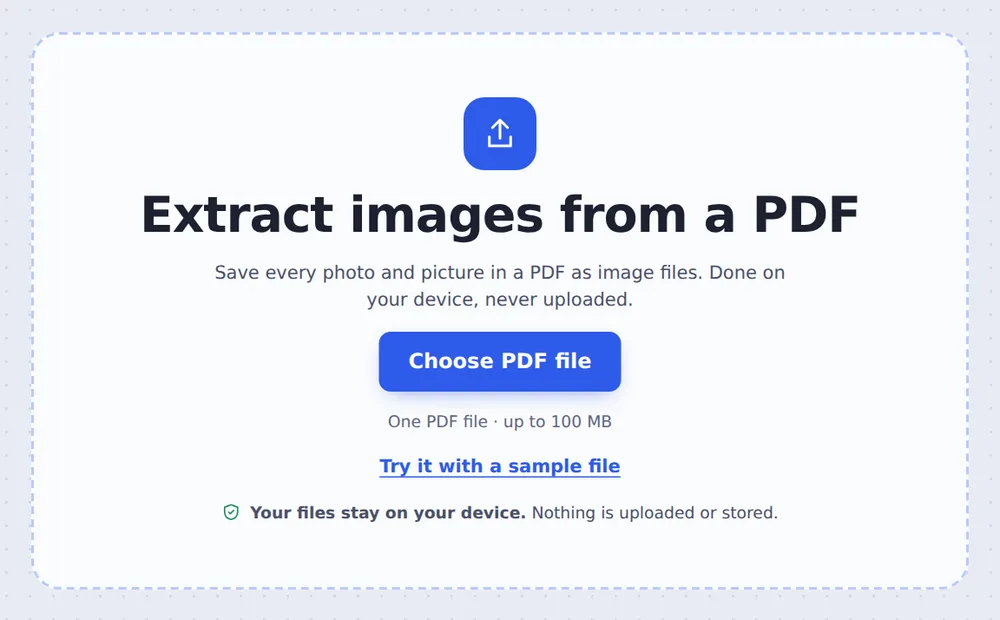
Choose your PDF
Click Choose PDF file or drop the PDF on the tool above.

Pick the format
Choose PNG for the best quality or JPG for smaller files, and the pages to look in. Click Extract images.

Save the pictures
Download them all in one ZIP file, or click a picture to save just that one.
Pictures, Not Screenshots
A screenshot of a PDF page captures the picture at screen size, together with the text around it. Pictures inside a PDF are often stored at a much higher resolution than you see.
This tool reads each picture straight from the file and saves it at its own full size, with nothing around it. A photo that appears on several pages is saved once, and tiny icons and lines are skipped unless you ask for them.
Text, tables and drawings are not pictures, so they are not saved. To save whole pages as images, use PDF to JPG.
Full size
The resolution stored in the PDF.
PNG or JPG
Lossless or smaller files.
No duplicates
Each picture saved once.
A Menu with Three Food Photos
Each photo comes out as its own image file, ready for social media or a website.

PNG or JPG?
Both keep the full size.
| File size | Best for | |
|---|---|---|
| PNG | Larger | Logos, charts, screenshots and editing |
| JPG | Smaller | Photos for sharing and the web |
Extract Images Without Uploading
TickPDF reads the pictures inside your own browser tab, so your documents never leave your device.
There is no account and no copy on our side.
- 0files uploadedYour PDF stays on your device.
- 0copies keptWe never see your pages.
- 0accounts neededOpen the page and start.

Extract Images from PDF on iPhone, Android or Computer
- Windows
- Mac
- Linux
- Chromebook
- iPhone
- iPad
- Android
Open this page in your phone's browser, choose the PDF and tap Extract images. Save the ZIP, or tap one picture to save it to your photos.
It works the same on Windows, Mac, Linux and Chromebook, with nothing to install.
Why People Extract Images from PDF Files
When you need the pictures on their own.
Product photos
From supplier catalogues.
Social media
Photos from menus and flyers.
Presentations
Charts and photos from reports.
Property photos
From listings and brochures.
Study material
Diagrams from papers and slides.
Archives
Recover pictures when the originals are lost.
Tips for Saving Pictures from a PDF
- PNG for editingLossless PNG is best if you will edit the picture.
- JPG for sharingSmaller files for email and social media.
- Pick pagesType a range to search only some pages.
- ScansA scanned page is one big picture of the page.
- Need the whole page?Use PDF to JPG to save pages as images.
- Respect copyrightOnly reuse pictures you have the right to use.
More PDF Tools
Like the tool to extract images from PDF files, they all run in the same private editor.
PDF to JPG
Save pages as images.
PDF to Text
Copy all the text out.
Compress PDF
Make the file smaller.
Split PDF
Cut a PDF wherever you want.
Extract PDF pages
Save some pages as a new PDF.
JPG to PDF
Turn photos into a PDF.

Extract Images from PDF: Frequently Asked Questions
Answers to what people ask about saving pictures from a PDF.
How do I extract images from a PDF?
Choose your PDF at the top of this page, pick PNG or JPG, and click Extract images. Every picture is saved at its full size, in one ZIP file or one at a time.
Can I extract images from a PDF for free?
Yes. The free plan works on PDFs up to 50 pages and 20 MB, with 3 downloads a day, no account and no watermark. TickPDF Pro removes these limits.
Can I extract images from a PDF online?
Yes. The tool runs in your web browser on Windows, Mac, Linux and Chromebook, with nothing to install. Open your PDF at the top of this page to start.
How do I extract images from a PDF on my phone?
Open this page in your phone's browser, choose the PDF and tap Extract images. Save the ZIP, or tap a picture to save just that one.
Can I extract images from a PDF without Adobe Acrobat?
Yes. You do not need Acrobat or any other software. The tool runs in your browser, and the images opens in Acrobat, Preview, Chrome and every other PDF reader.
Is it safe to extract images from a PDF online?
Yes. Your PDF is not uploaded. It is opened and processed inside your browser tab and never sent to our servers, so nobody else sees it. Close the tab and nothing is left behind.
Are the images saved at full quality?
Yes. Each picture is saved at the size it is stored in the PDF, not as a screenshot of the page. Choose PNG for the best quality, or JPG for smaller files.
What is the easiest way to extract images from a PDF?
Open the PDF above and click Extract images. Small icons and lines are skipped, and a picture that appears on many pages is saved once.
Ready to Save the Pictures?
No account, no upload and no watermark: choose your PDF at the top of this page.
Open the toolTickPDF saves every picture on your own device. Choose your file and extract images from PDF documents today.