
Print PDF Online Free
Print PDF online: choose the pages and print, with no PDF app.
- No upload
- Pick pages
- No sign-up
- Any printer

Print PDF online when there is no PDF reader to hand, the file will not print from your email app, or you only need a few pages. Pick the pages, choose the size on paper and click Print: your browser’s print window opens with every page ready. Nothing is uploaded.
How to Print PDF Online
Your usual printer settings still apply.
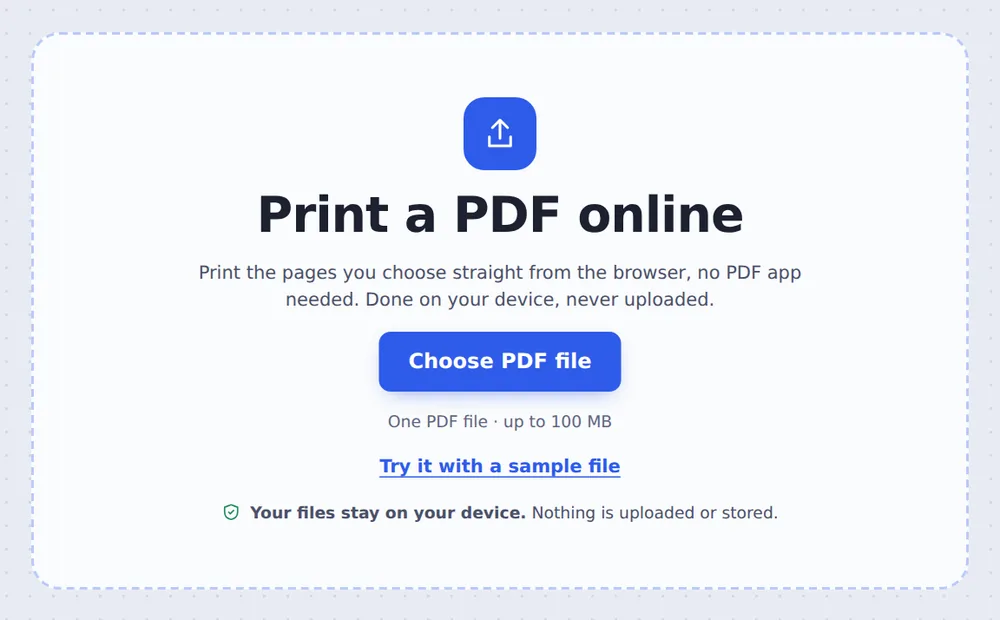
Choose your PDF
Click Choose PDF file or drop the PDF on the tool above. Every page is selected.

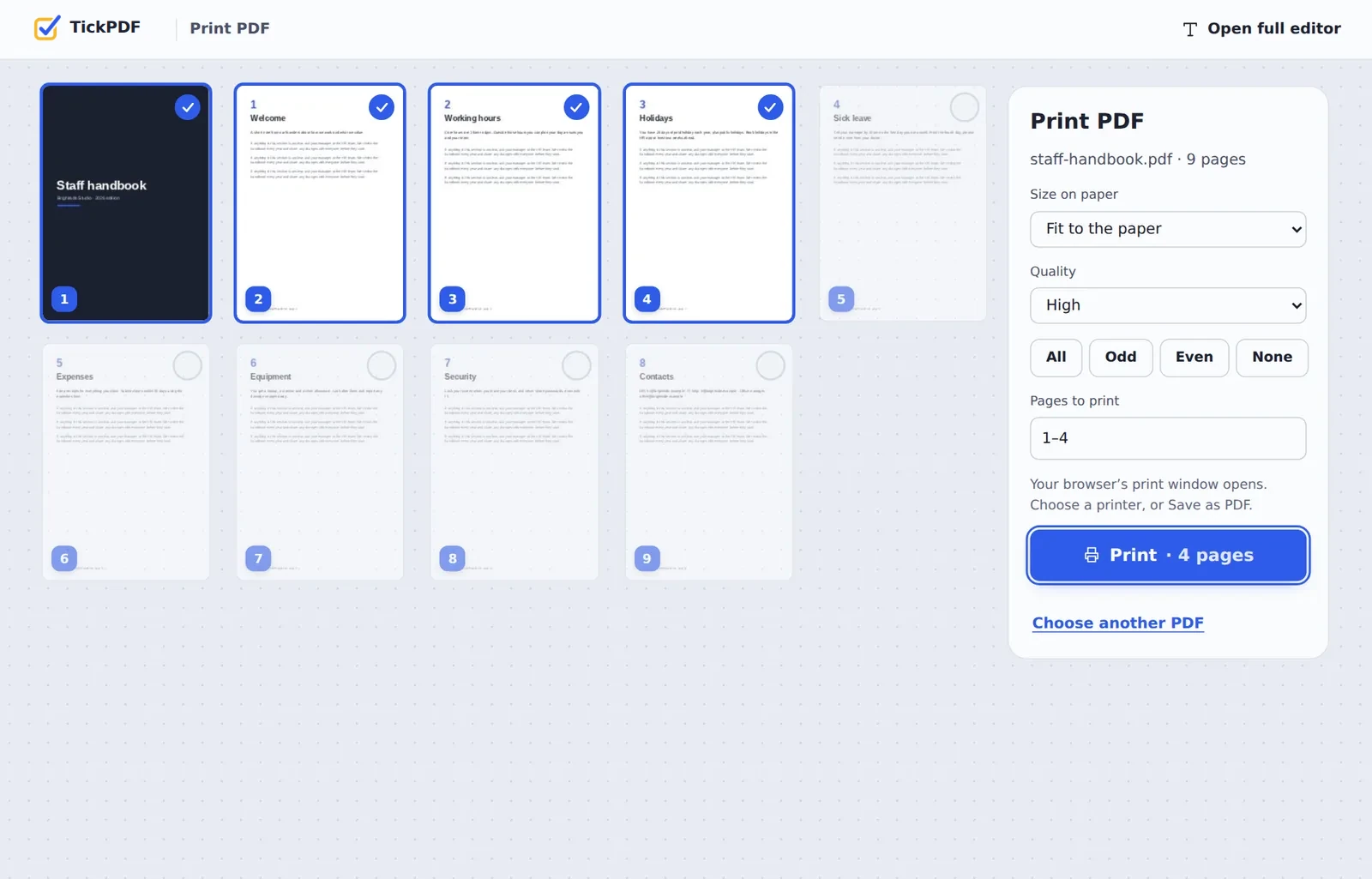
Pick the pages
Click pages to leave them out, or type them, such as 1-4. Choose Odd or Even for double-sided printing by hand.
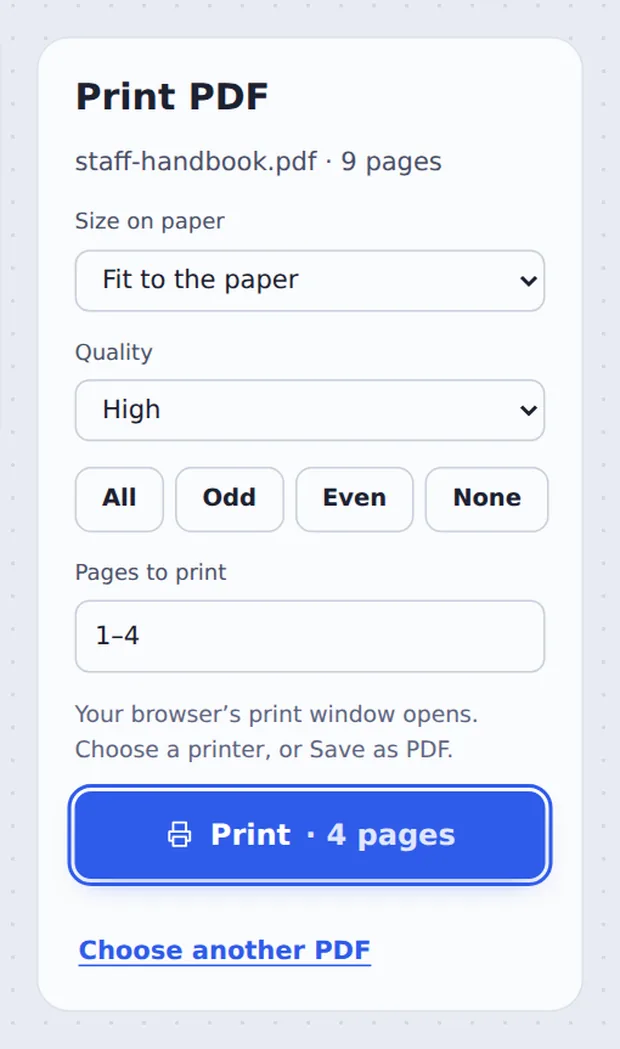
Click Print
Choose Fit to the paper or Actual size and click Print. Pick your printer in the window that opens.
Printing Without a PDF App
On a shared computer, a work laptop or a phone, printing a PDF can be surprisingly hard: there is no reader installed, the email app only shows a preview, or the browser prints every page when you want two.
When you print PDF online here, each page you choose is prepared at print quality in your browser and handed to the normal print window of your computer or phone. From there you pick the printer, the copies and double-sided printing as usual.
You can also choose Save as PDF in that window to make a new PDF of just those pages.
Any printer
The one your device already uses.
Any pages
All, odd, even or a range.
Fit or actual size
For forms and drawings.
Fit to the Paper or Actual Size?
Choose actual size for forms and drawings.
| Fit to the paper | Actual size | |
|---|---|---|
| What it does | Shrinks or grows each page to fit | Prints at the exact size of the page |
| Best for | Letters, reports, slides | Forms, labels and scale drawings |
| A4 file on Letter paper | Fits, with small margins | Edges may be cut |
Print PDF Online Without Uploading
Online printing services usually upload your file first. Here the pages are prepared inside your own browser tab and sent straight to your printer, so the document never leaves your device.
There is no account and no copy on our side.
- 0files uploadedYour PDF stays on your device.
- 0copies keptWe never see your pages.
- 0accounts neededOpen the page and start.
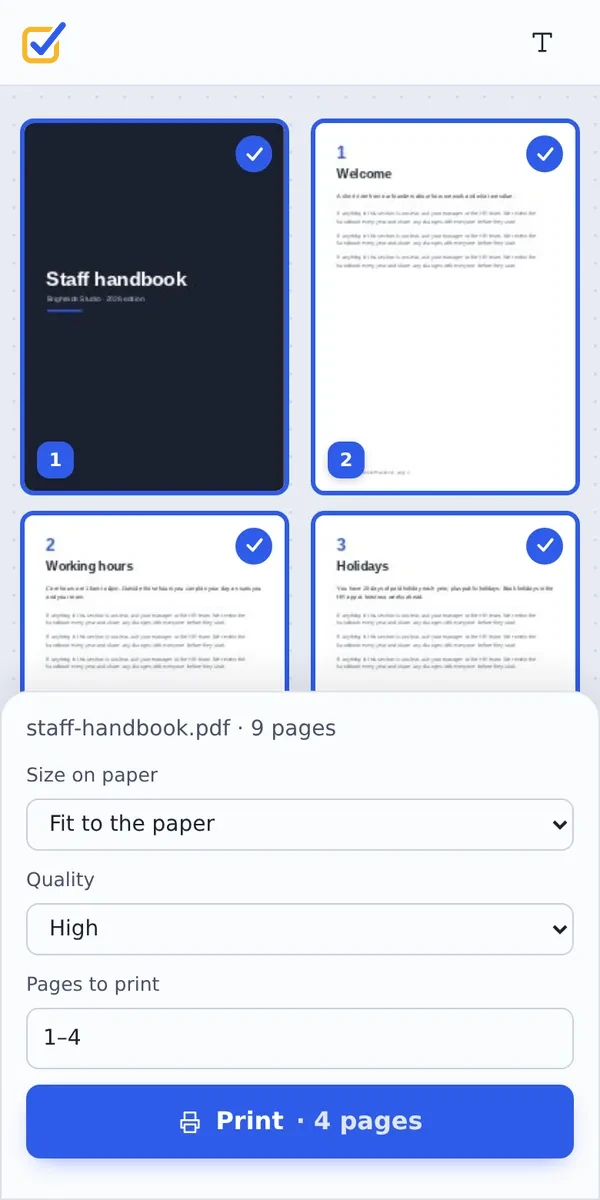
Works on iPhone, Android or Computer
- Windows
- Mac
- Linux
- Chromebook
- iPhone
- iPad
- Android
Open this page in your phone's browser, choose the PDF and tap Print. Your phone's print screen opens, where you choose a nearby printer.
It works the same on Windows, Mac, Linux and Chromebook, with nothing to install.
When People Print From the Browser
People print PDF online when the usual way does not work.
Shared computers
Libraries, schools and hotels.
Phones
Print a ticket or form from a phone.
A few pages
Just the form, not the whole pack.
Tickets and bookings
Boarding passes and vouchers.
Homework
Only the pages for this week.
Double-sided by hand
Odd pages, then even pages.
Tips to Print PDF Online Well
- Two-sided printingPrint Odd, turn the stack over, then Even.
- Forms and labelsChoose Actual size.
- Fine printChoose Best quality.
- Several per sheetUse Pages per sheet first.
- Save inkBlack and white PDF first.
- Save as PDFPick it as the printer for a copy.
More PDF Tools
They all run in the same private editor.
Pages per sheet
Print several pages on one sheet.
Black and white PDF
Grey or pure black and white.
Extract PDF pages
Save some pages as a new PDF.
PDF reader
Open and read PDFs online.
Resize PDF pages
Change the page size.
PDF Editor
Edit text, sign and annotate.
Print PDF Online: Frequently Asked Questions
Answers to what people ask before they print a PDF online.
How do I print a PDF online?
Choose your PDF at the top of this page, pick the pages and the size on paper, and click Print. Your browser's print window opens, where you choose the printer.
Can I print a PDF online for free?
Yes. Printing is free, with no account and no watermark on the printed pages.
Can I print a PDF online with nothing to install?
Yes. The tool runs in your web browser on Windows, Mac, Linux and Chromebook. You need no PDF app, only a printer that your computer or phone can use.
How do I print a PDF online on my phone?
Open this page in your phone's browser, choose the PDF and tap Print. Your phone's print screen opens, where you pick a nearby printer or save the pages as a PDF.
Can I print a PDF online without Adobe Acrobat?
Yes. You do not need Acrobat or any other PDF reader. The pages are prepared in your browser and sent to the printer from there.
Is it safe to print a PDF online?
Yes. Your PDF is not uploaded. It is opened and processed inside your browser tab and never sent to our servers, so nobody else sees it. Close the tab and nothing is left behind.
How do I print a PDF online without losing quality?
Choose High or Best under Quality. Pages are prepared at up to 300 dpi, which is what most office printers use, so text and lines print crisply.
What is the easiest way to print a PDF online?
Drop the PDF on the tool above and click Print. Every page is selected and sized to fit the paper.
Ready to Print Your PDF?
No account, no upload and no watermark: choose your PDF at the top of this page.
Open the toolTickPDF prepares the pages on your own device. Choose your file and print PDF online today.