
Scan to PDF Online Free
Scan to PDF with your phone camera: clean pages, one PDF, no app.
- No upload
- No app
- Scanner look
- Optional OCR

Scan to PDF with nothing but your phone. Photograph each page, and the photos are cleaned up to look like they came from a scanner: the background is cut away, the paper turns white and the text turns dark. Add OCR to make the text searchable. Nothing is uploaded.
How to Scan to PDF With Your Phone
Good light and a flat page give the best scan.
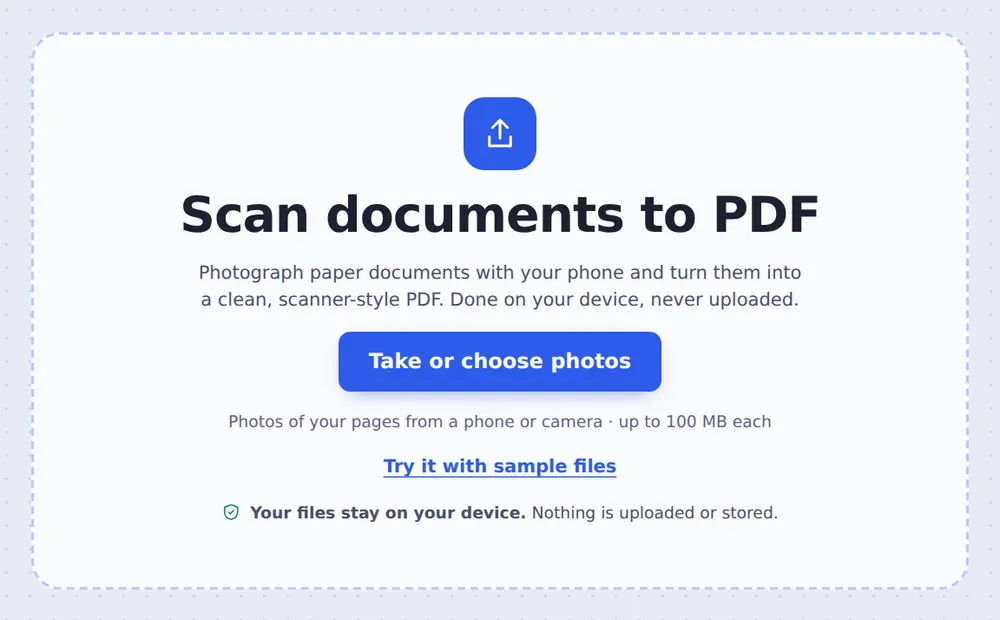
Take or choose photos
Tap Take or choose photos and photograph each page, or pick photos you already took.
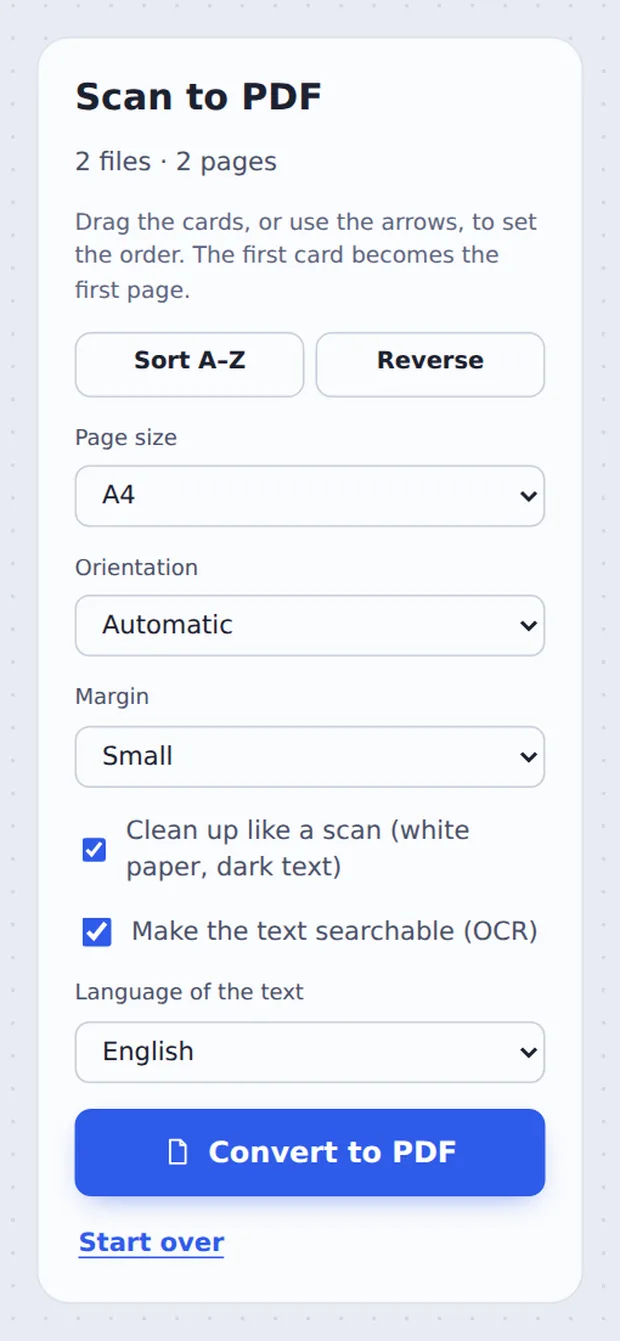
Choose the options
Keep Clean up like a scan ticked. Tick Make the text searchable to add OCR, then click Convert to PDF.
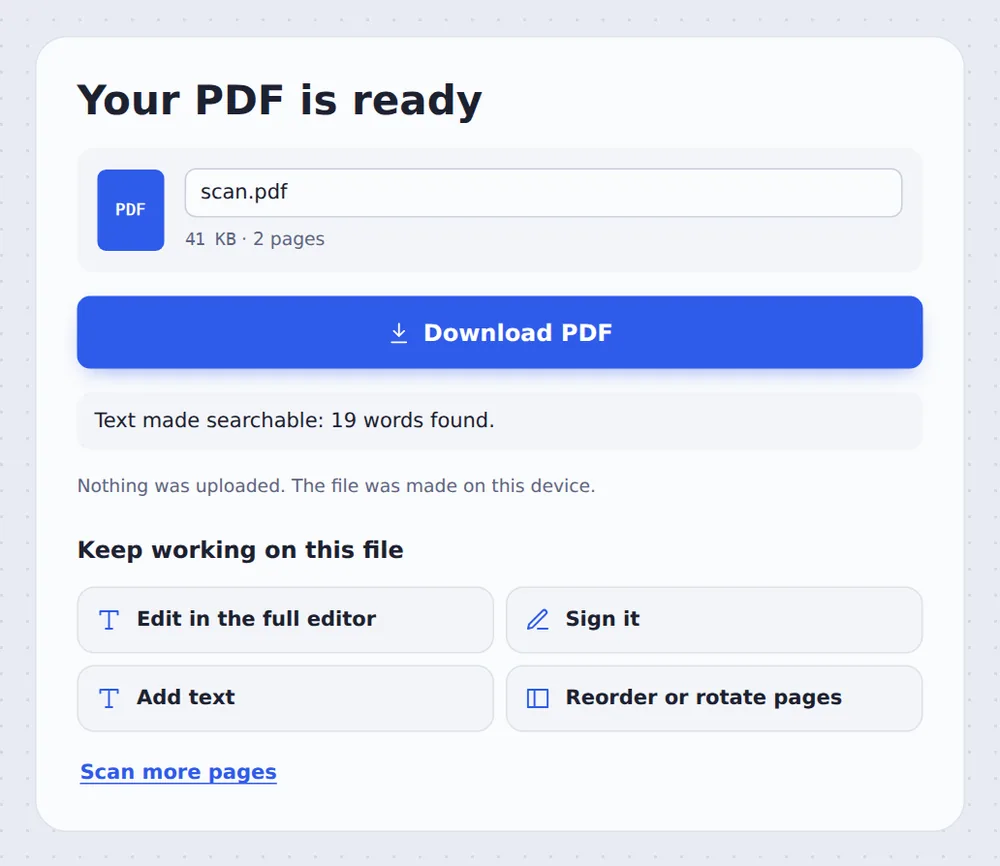
Download your scan
Click Download PDF and save it, email it or keep editing.
Your Phone Is the Scanner
A photo of a page is not a scan: there is a table round it, a shadow across it and grey paper. Sent as it is, it is hard to read and looks careless.
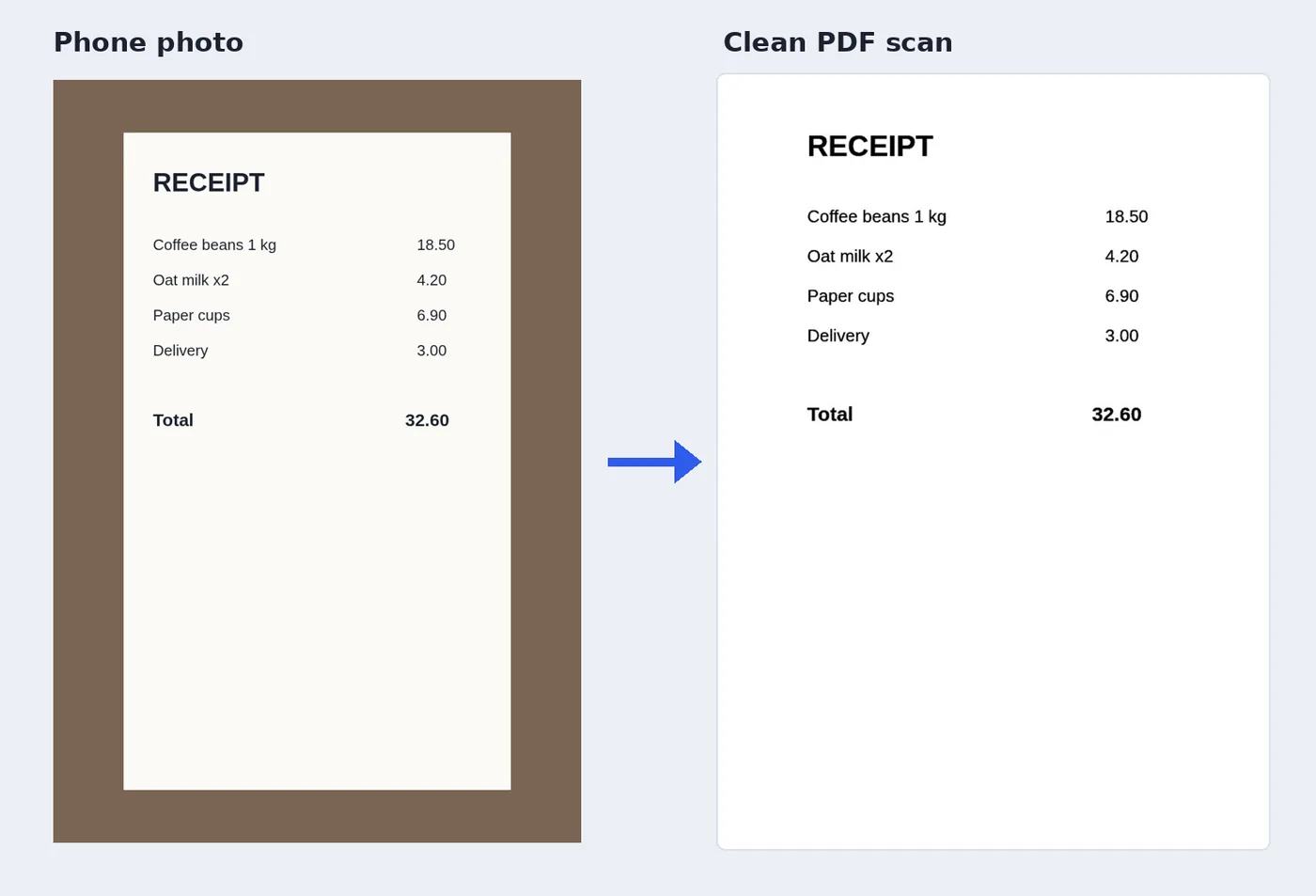
When you scan to PDF here, each photo is looked at once: the sheet of paper is found and cropped, the background is removed, the paper is made white and the text dark and crisp. The result looks like it came from an office scanner.
Tick Make the text searchable and OCR runs as well, so you can search and copy words from the scan.
Cropped
The table and background are cut away.
Cleaned
White paper and dark text.
Searchable
Optional OCR in six languages.
From Phone Photo to Clean Scan
A receipt photographed on a table, cropped and turned into a clean, white page.
Phone Photo, Scan App or This Page
The same clean result, without an app.
| Photo as it is | This page | |
|---|---|---|
| Background | Table, shadows, fingers | Cut away |
| Paper | Grey or yellow | White |
| Searchable text | No | Yes, with OCR ticked |
| Install anything | No | No |
Scan to PDF Without Uploading
Scan apps often send your pages to their cloud. TickPDF cleans up the photos and makes the PDF inside your browser, so your ID, bills or letters never leave your phone.
There is no account and no copy on our side.
- 0files uploadedYour photo stays on your device.
- 0copies keptWe never see your pages.
- 0accounts neededOpen the page and start.

Made for iPhone and Android
- Windows
- Mac
- Linux
- Chromebook
- iPhone
- iPad
- Android
Open this page in Safari or Chrome on your phone, tap Take or choose photos and use the camera. Tap Convert to PDF when you have all the pages.
It works the same on Windows, Mac, Linux and Chromebook, with nothing to install.
What People Scan With Their Phone
People scan to PDF when there is no scanner nearby.
Receipts
Expenses and returns.
Signed forms
Send a signed page back.
Letters
Keep a copy of the post.
Homework
Hand in written work as a PDF.
Medical papers
Prescriptions and test results.
IDs and contracts
For applications and rentals.
Tips for a Sharp Phone Scan
- Good lightDaylight, no flash glare.
- Dark backgroundPaper on a darker table crops best.
- Fill the frameGet the whole page in the photo.
- Hold it straightAbove the page, not at an angle.
- Order the pagesDrag the cards before converting.
- Smaller fileCompress PDF after scanning.
More PDF Tools
They all run in the same private editor.
OCR PDF
Make scans searchable.
JPG to PDF
Turn photos into a PDF.
HEIC to PDF
Turn iPhone photos into a PDF.
Compress PDF
Make the file smaller.
Merge PDF
Join files into one document.
PDF Editor
Edit text, sign and annotate.

Scan to PDF: Frequently Asked Questions
Answers to what people ask before they scan to PDF.
How do I scan to PDF?
Take a photo of each page with your phone, then choose the photos at the top of this page. They are cleaned up to look like a scan, with white paper and dark text, and saved as one PDF.
Can I scan to PDF for free?
Yes. The free plan works on PDFs up to 50 pages and 20 MB, with 3 downloads a day, no account and no watermark. TickPDF Pro removes these limits.
Can I scan to PDF online with nothing to install?
Yes. The tool runs in your web browser on phones, tablets and computers. There is no scanner app to install and no account to create.
How do I scan to PDF on my phone?
Open this page in your phone's browser and tap Take or choose photos. Photograph each page, then tap Convert to PDF and save the file. There is no app to install.
Can I scan to PDF without Adobe Acrobat?
Yes. You need no Acrobat, Adobe Scan or other software. The PDF you make opens in every PDF reader.
Is it safe to scan to PDF online?
Yes. Your photo is not uploaded. It is opened and processed inside your browser tab and never sent to our servers, so nobody else sees it. Close the tab and nothing is left behind.
How do I scan to PDF without losing quality?
Photograph the page flat, in good light, with the whole sheet in the frame. Photos are kept at high resolution, and the clean-up makes text darker and the paper whiter, which usually makes it easier to read than the photo.
What is the easiest way to scan to PDF?
Open this page on your phone, take a photo of each page and tap Convert to PDF. Tick Make the text searchable to add OCR at the same time.
Ready to Scan to PDF?
No account, no upload and no watermark: choose your photos at the top of this page.
Open the toolTickPDF turns phone photos into clean scans on your own device. Take a photo and scan to PDF today.