
Batch PDF Editor Online Free
Batch PDF editor: do one job to a whole folder of PDFs.
- No upload
- 8 jobs
- No sign-up
- One ZIP

This batch PDF editor saves you opening files one by one. Drop in as many PDFs as you like, choose one job, such as compress, watermark, add page numbers, rotate, protect with a password, remove hidden details or flatten forms, and download them all in one ZIP. Every file is processed on your own device.
How to Use the Batch PDF Editor
One job, many files.

Choose your PDFs
Click Choose PDF files and select them all, or drop a folder's worth on the tool above.
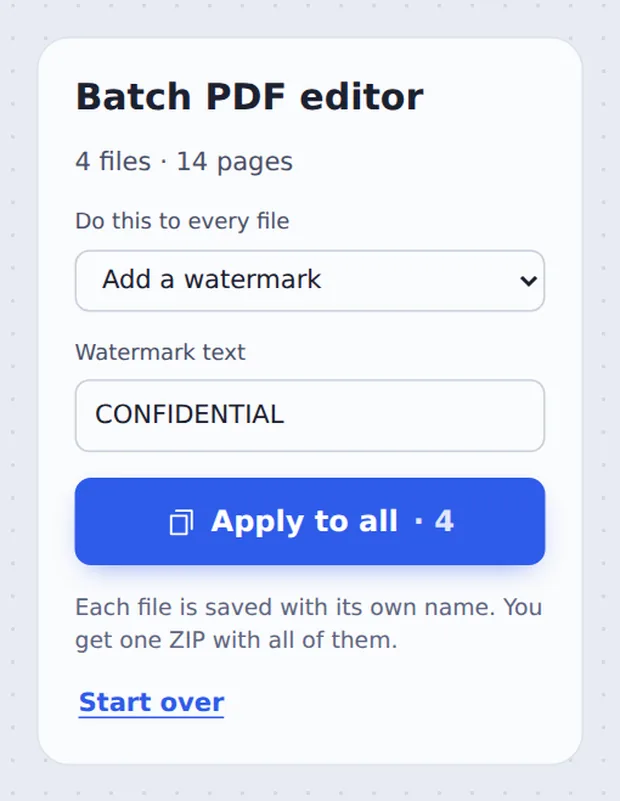
Choose the job
Pick it under Do this to every file, fill in any setting, and click Apply to all.

Download the ZIP
Click Download ZIP, or save the files one at a time from the list.
What You Can Do to Many Files
Most PDF tools take one file at a time. That is fine for one contract, but slow for forty invoices. A batch PDF editor repeats the same job on every file you add.
You can make files smaller, stamp them with a watermark such as CONFIDENTIAL, number their pages, turn them the right way up, lock them with the same password, delete hidden author details, or flatten form fields and comments so they cannot be changed.
Each file keeps its own name with a short ending, such as invoice-march-watermarked.pdf, so you always know which is which.
Compress
Smaller files for email.
Watermark
The same text on all.
Protect
One password for all.
One by One or in a Batch
The time saved grows with every file.
| One file at a time | Batch PDF editor | |
|---|---|---|
| 20 files | 20 rounds of open, set, save | One round |
| Settings | Chosen 20 times | Chosen once |
| Result | 20 separate downloads | One ZIP |
Process Many Files Without Uploading
A batch of payslips or client files is a lot of private information in one place. TickPDF works inside your own browser tab, so none of the files leave your device.
There is no account and no copy on our side.
- 0files uploadedEvery file stays on your device.
- 0copies keptWe never see your pages.
- 0accounts neededOpen the page and start.

Works on iPhone, Android or Computer
- Windows
- Mac
- Linux
- Chromebook
- iPhone
- iPad
- Android
Open this page in your phone's browser, choose the PDFs from Files and pick the job. Tap Apply to all and save the ZIP.
It works the same on Windows, Mac, Linux and Chromebook, with nothing to install.
When People Edit PDFs in Bulk
People use a batch PDF editor for jobs that come in piles.
Invoices
Number and stamp them.
Payslips
One password for all.
Email limits
Compress a whole folder.
Course packs
Watermark the handouts.
Scans
Turn them the right way up.
Before publishing
Remove author details.
Pro Tips for Faster Results
- Test one firstTry the job on one file before forty.
- PasswordsUnlock locked files before you start.
- One file?Use Merge PDF after the batch.
- Check the ZIPOpen a couple of files to be sure.
- Keep the originalsThe files you chose are not changed.
- NamesEach file keeps its own name.
More PDF Tools
They all run in the same private editor.
Compress PDF
Make the file smaller.
Watermark PDF
Mark pages CONFIDENTIAL.
Add page numbers
Number the pages.
Protect PDF
Add a password.
Remove PDF metadata
Delete hidden author details.
Merge PDF
Join files into one document.

Batch PDF Editor: Frequently Asked Questions
Answers to what people ask before they use a batch PDF editor.
How do I use a batch PDF editor?
Choose all your PDFs at the top of this page, pick the job under Do this to every file and click Apply to all. You get every file back in one ZIP, each with its own name.
Can I batch edit PDFs for free?
Yes. The free plan works on PDFs up to 50 pages and 20 MB, with 3 downloads a day, no account and no watermark. TickPDF Pro removes these limits.
Can I batch edit PDFs online?
Yes. The tool runs in your web browser on Windows, Mac, Linux and Chromebook, with nothing to install. Open your PDFs at the top of this page to start.
How do I batch edit PDFs on my phone?
Open this page in your phone's browser, choose the PDFs from Files, pick the job and tap Apply to all. Save the ZIP to your phone. There is no app to install.
Can I batch edit PDFs without Adobe Acrobat?
Yes. You do not need Acrobat Pro's Action Wizard or any other software. The batch PDF editor runs in your browser.
Is it safe to use a batch PDF editor online?
Yes. Your PDFs are not uploaded. They are opened and processed inside your browser tab and never sent to our servers, so nobody else sees them. Close the tab and nothing is left behind.
Will a batch PDF editor lower the quality of my files?
Only if you choose Compress or Black and white, which make pictures smaller on purpose. Watermarks, page numbers, rotation, passwords, metadata removal and flattening leave the text and pictures as they were.
What jobs can the batch PDF editor do?
Compress, add a watermark, add page numbers, rotate pages, turn pages black and white, add a password, remove hidden details and flatten forms and comments. Pick one job per batch.
Ready to Edit Many PDFs at Once?
No account, no upload and no watermark: choose your PDFs at the top of this page.
Open the toolEverything is processed on your own device. Choose your files and try the batch PDF editor today.