
RTF to PDF Converter Online Free
RTF to PDF: Rich Text files as PDF, with their fonts, lists and tables.
- No upload
- Fonts kept
- No sign-up
- Tables and lists

Convert RTF to PDF when you have a Rich Text file from WordPad, TextEdit, an older version of Word or a program that exports .rtf, and need a PDF to send, print or upload. Fonts, sizes, bold and italic text, alignment, lists, tables and pictures come across, on the page size saved in the file. Nothing is uploaded.
How to Convert RTF to PDF
RTF is a plain-text format with formatting codes, readable by almost every word processor.

Choose your RTF files
Click Choose RTF files or drop .rtf files on the tool above.

Pick the quality
Choose Quality and keep Make the text searchable ticked, then click Convert to PDF.
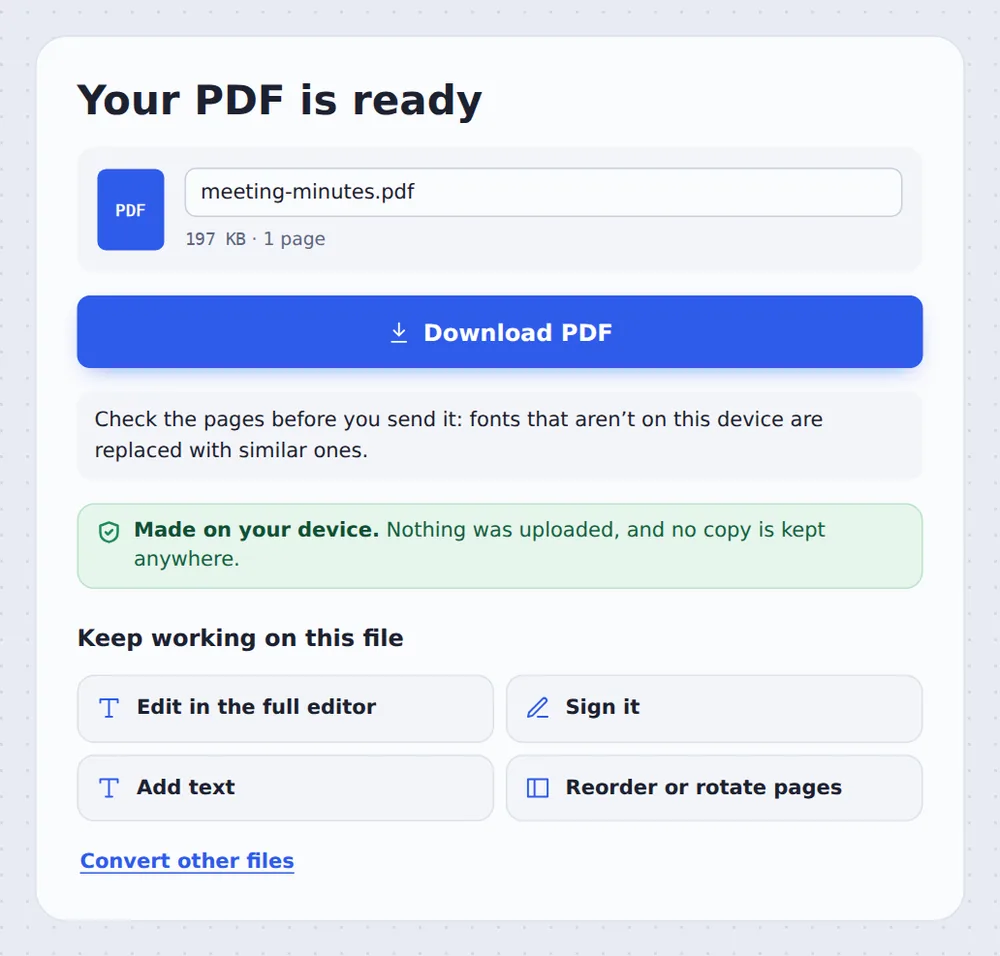
Download the PDF
Click Download PDF. Several files come back together in one ZIP.
How the Rich Text Is Read
An .rtf file is text with formatting codes, such as \b for bold and \par for a new paragraph. To turn RTF to PDF here, the codes are read one by one: fonts, sizes, bold, italics and underline, alignment and indents, bullet lists, tables and embedded PNG or JPEG pictures.
The page size and margins saved in the file are used, and the text is cut into pages between lines, with an invisible text layer so the PDF can be searched and copied.
Fonts that are not on your device are replaced with similar ones. Headers, footers, footnotes and drawing objects are not shown.
Rich Text
WordPad, TextEdit, Word.
Formatting
Fonts, bold, italics.
Tables
Rows and cells kept.
The Rich Text File as a PDF
The sample RTF file after conversion, opened in the editor.

Printing to PDF or This Converter
Use whichever suits you.
| Print to PDF in WordPad | This tool | |
|---|---|---|
| Needs a word processor | Yes | No |
| Works on a phone | No | In the browser |
| Several files | One at a time | All at once, one ZIP |
Private by Design, With No Upload
Letters and notes often contain private details. TickPDF converts RTF to PDF inside your own browser tab, so the file never leaves your device.
There is no account and no copy on our side.
- 0files uploadedYour file stays on your device.
- 0copies keptWe never see your pages.
- 0accounts neededOpen the page and start.

Works on iPhone, Android and Computer
- Windows
- Mac
- Linux
- Chromebook
- iPhone
- iPad
- Android
Open this page in your phone's browser, choose the .rtf file from Files and tap Convert to PDF.
It works the same on Windows, Mac, Linux and Chromebook, with nothing to install.
When People Use This Tool
People convert RTF to PDF when an older program or a Mac app saved the file as Rich Text.
WordPad
The Windows text app.
TextEdit
The Mac text app.
Old software
Many export .rtf.
Coursework
Simple essays.
Templates
Letters and forms.
Portals
Many accept only PDF.
Pro Tips for Faster Results
- Check the pagesLook at line breaks.
- Sharpest textUse Print to PDF.
- .rtfd filesSave them as .rtf first.
- One PDFMerge several after.
- Smaller fileChoose Standard quality.
- Sign itUse Sign PDF afterwards.
Related Tools in the Same Editor
They all run in the same private editor.
Word to PDF
Turn .docx into PDF.
ODT to PDF
LibreOffice files into PDF.
Merge PDF
Join files into one document.
Compress PDF
Make the file smaller.
Sign PDF
Sign the document.
PDF Editor
Edit text, sign and annotate.

RTF to PDF: Frequently Asked Questions
Answers to what people ask before they convert RTF to PDF.
How do I convert RTF to PDF?
Choose your .rtf file at the top of this page and click Convert to PDF. The page size and margins saved in the file are used.
Can I convert RTF to PDF for free?
Yes. The free plan works on PDFs up to 50 pages and 20 MB, with 3 downloads a day, no account and no watermark. TickPDF Pro removes these limits.
Can I convert RTF to PDF online?
Yes. The converter runs in your web browser on Windows, Mac, Linux and Chromebook, with nothing to install. Choose your .rtf files at the top of this page.
How do I convert RTF to PDF on my phone?
Open this page in your phone's browser, choose the .rtf file from Files and tap Convert to PDF. There is no app to install.
Can I convert RTF to PDF without Adobe Acrobat?
Yes. You need no Acrobat and no other software. The .rtf file is converted in your browser, and the PDF opens in every PDF reader.
Is it safe to convert RTF to PDF online?
Yes. Your file is not uploaded. It is opened and processed inside your browser tab and never sent to our servers, so nobody else sees it. Close the tab and nothing is left behind.
How do I convert RTF to PDF without losing quality?
Choose High or Print quality, or click Save it with your browser's Print to PDF for text that stays sharp at any zoom.
What is the easiest way to convert RTF to PDF?
Drop the .rtf file on the tool above and click Convert to PDF. There are no settings you need to change.
Ready to Convert RTF to PDF?
No account, no upload and no watermark: choose your RTF files at the top of this page.
Open the toolTickPDF converts your files on your own device. Choose your files and convert RTF to PDF today.