
Remove Blank Pages from PDF Online Free
Remove blank pages from PDF files in one click: they are found for you.
- No upload
- Found automatically
- No sign-up
- You check first

Remove blank pages from PDF scans and documents without hunting for them. Every page is checked, the empty ones are marked Remove, and you can keep or add any page with a click before you download. It all happens on your device, so the file is never uploaded.
How to Remove Blank Pages from PDF
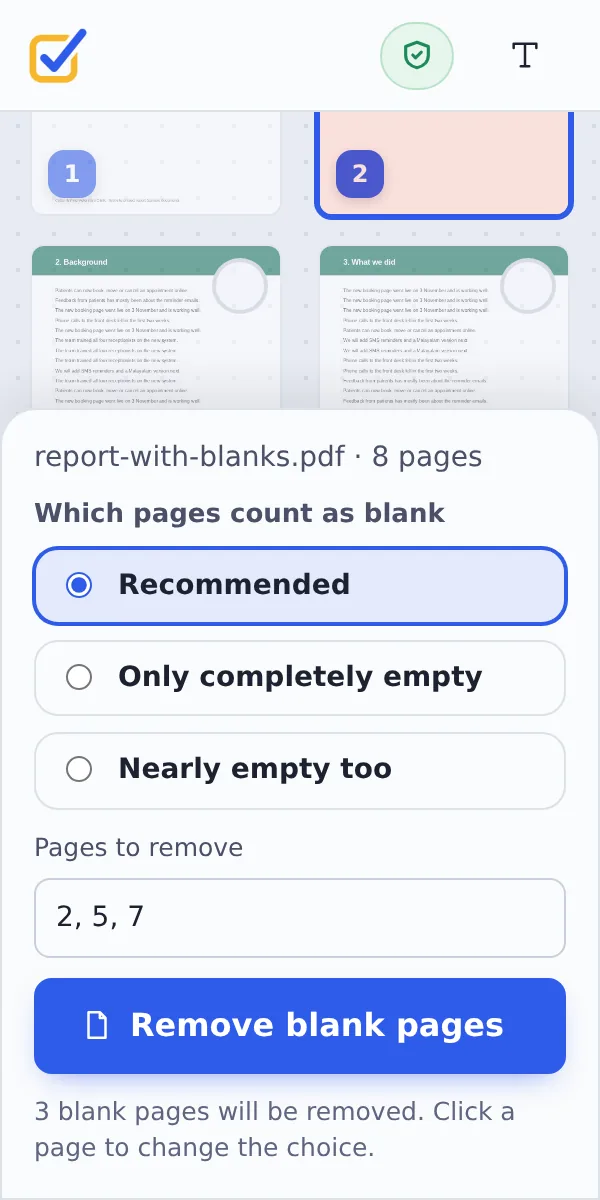
The blank pages are found as soon as the file opens.
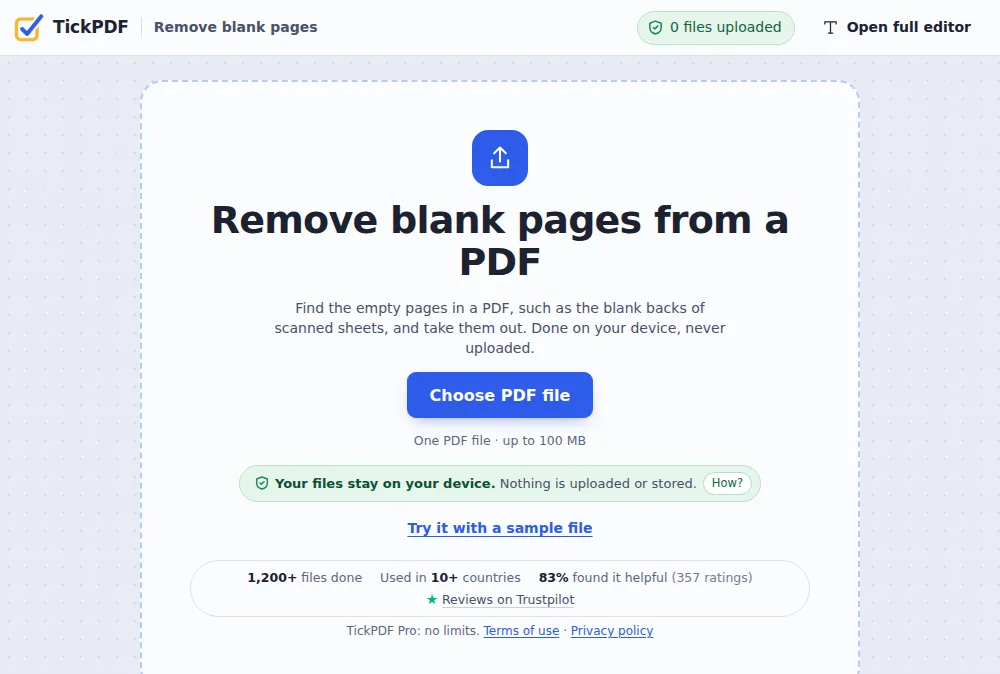
Choose your PDF
Click Choose PDF file or drop the PDF on the tool above.
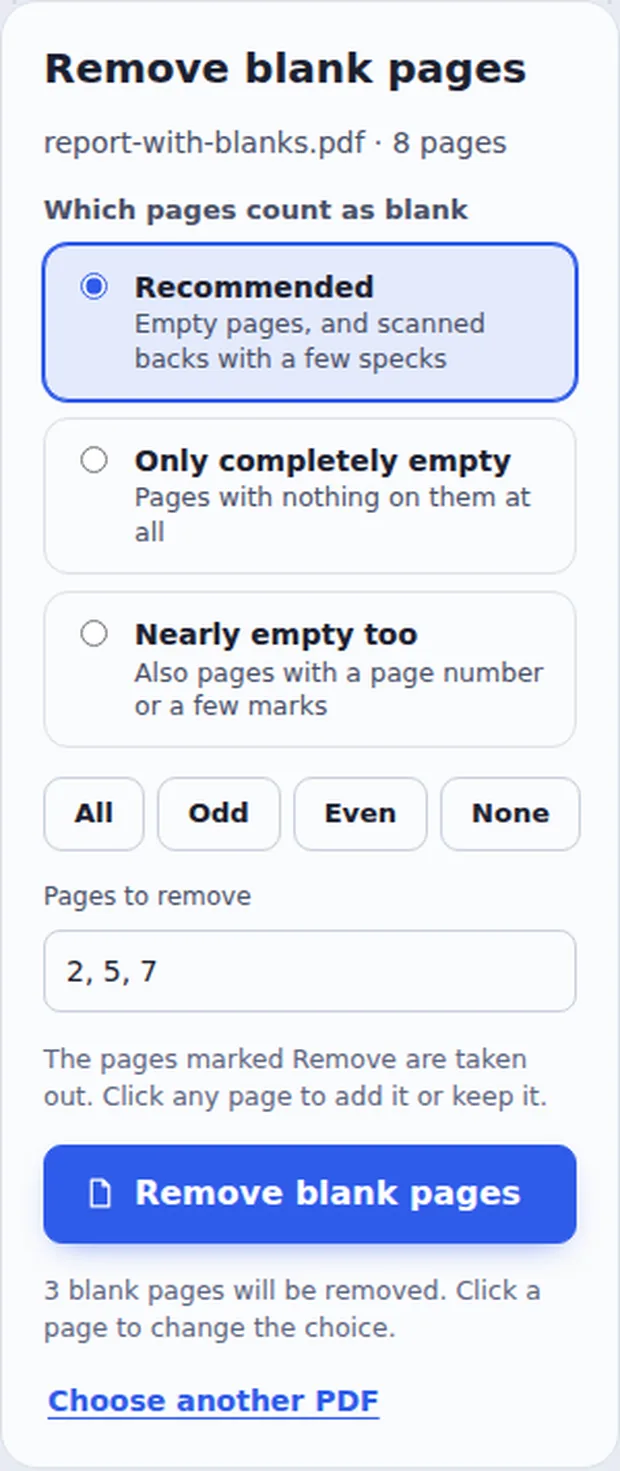
Check the marked pages
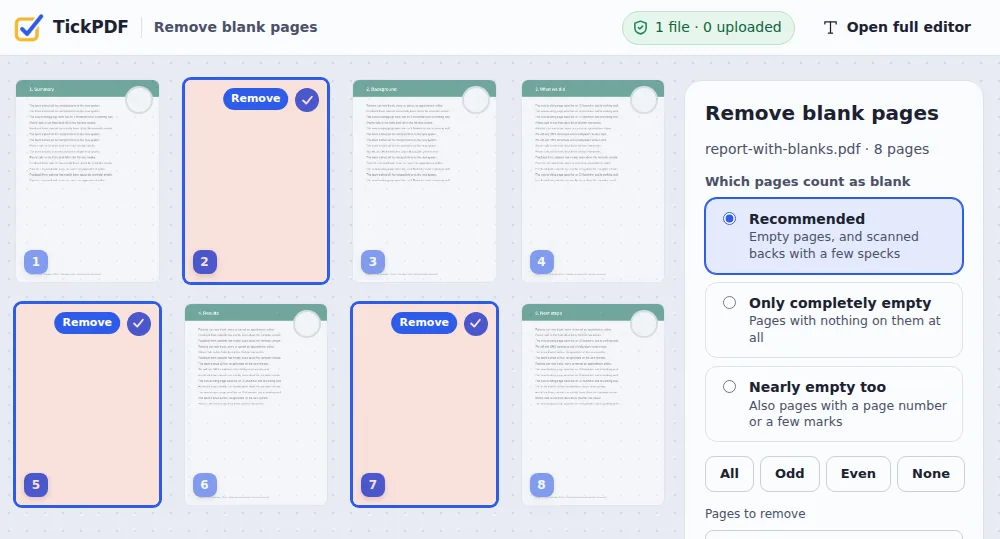
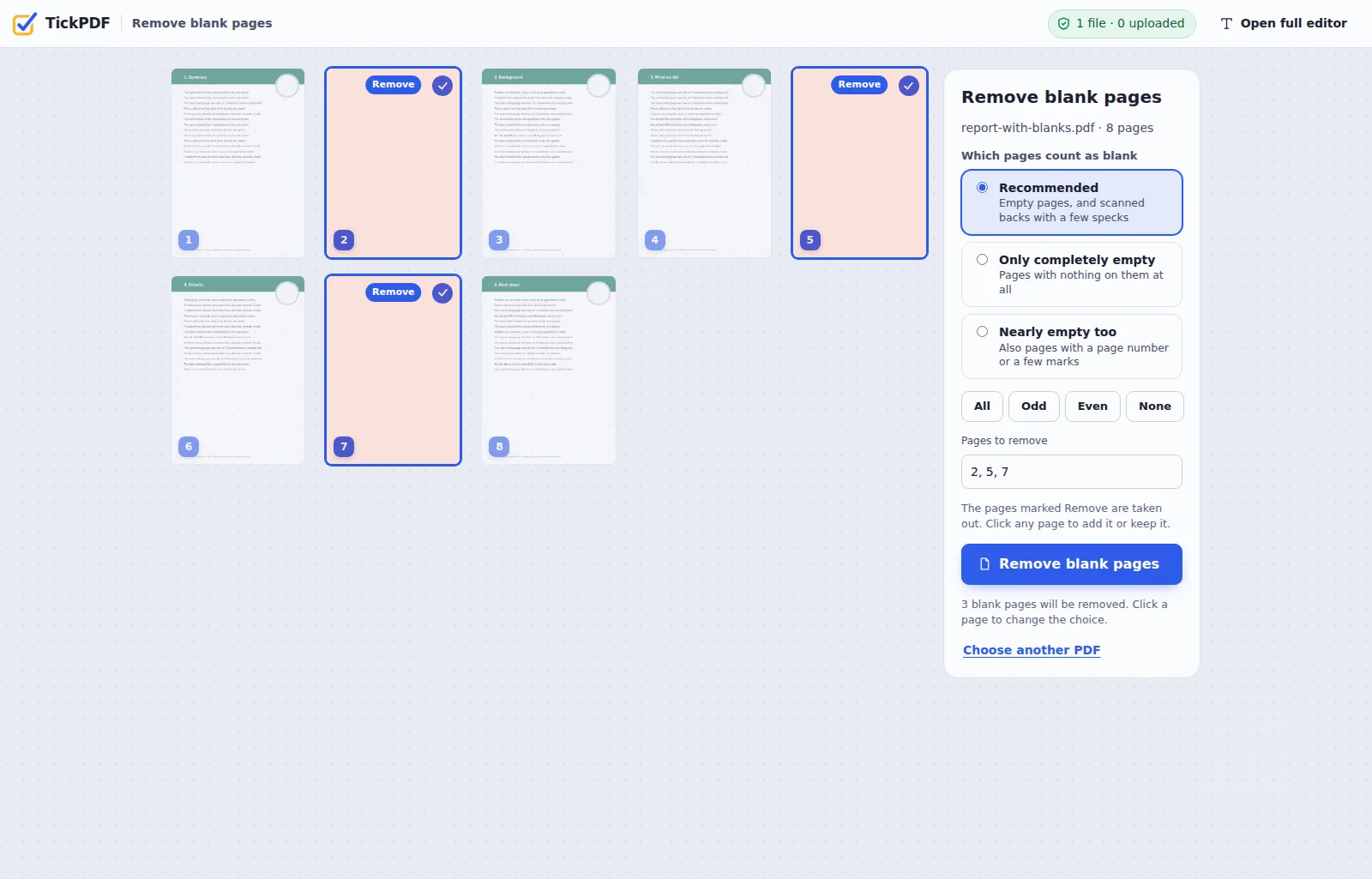
Blank pages are marked Remove. Click a page to keep it or add it, or pick how strict to be. Click Remove blank pages.
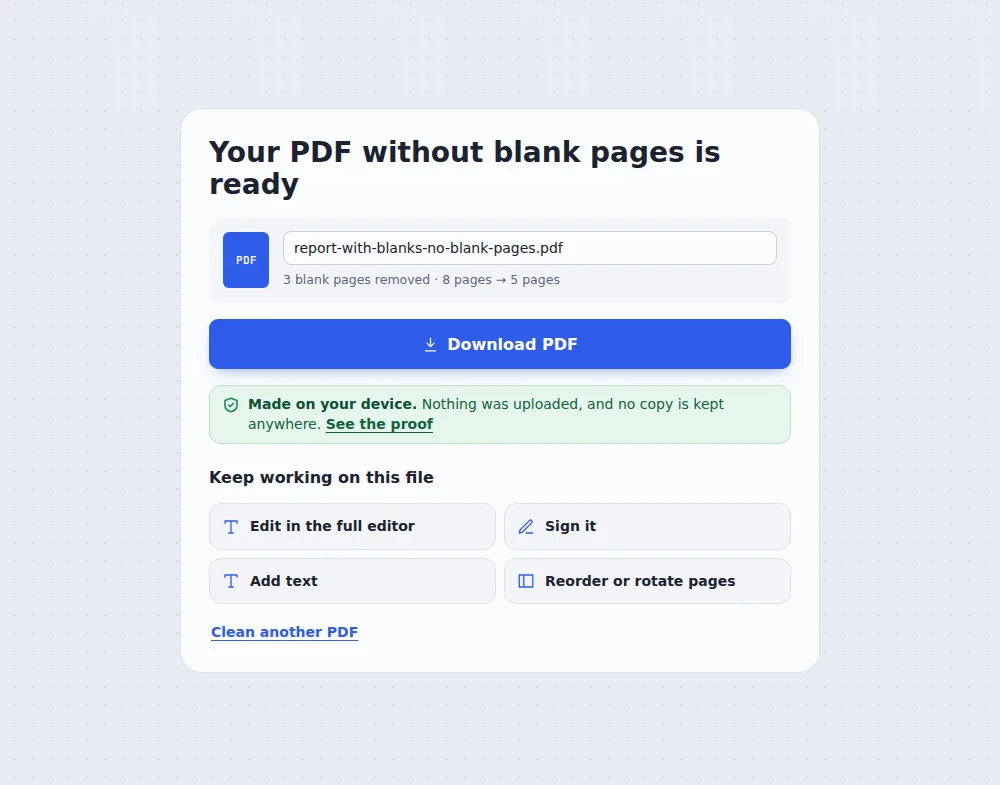
Download the clean copy
Click Download PDF. Your original file is not changed.
How Blank Pages Are Found
To remove blank pages from PDF files, each page is looked at as a small picture and the amount of ink on it is measured. A page with almost nothing on it is marked as blank.
Scanners often add the empty backs of single-sided sheets. They are rarely pure white: there are specks, a shadow at the edge or a faint show-through from the other side. The Recommended setting ignores those, while still keeping pages with real content.
Nothing is removed until you agree: you see the marked pages first and can change any of them.
Scanned backs
Empty reverse sides of sheets.
Spacer pages
Blank pages left in documents.
You decide
Click to keep any page.
Blank Pages Marked Remove
Empty pages found in a document. One click to remove blank pages from PDF files like this.
Which Pages Count as Blank?
Three settings to remove blank pages from PDF files of every kind.
| Removes | Use it for | |
|---|---|---|
| Recommended | Empty pages and scanned backs with specks | Most scans and documents |
| Only completely empty | Pages with nothing at all | Typed documents |
| Nearly empty too | Also pages with only a number or a mark | Scans with stamped page numbers |
Remove Blank Pages from PDF Without Uploading
Scanned documents are often private. TickPDF checks and cleans the file inside your own browser tab, so it never leaves your device.
There is no account and no copy on our side.
- 0files uploadedYour PDF stays on your device.
- 0copies keptWe never see your pages.
- 0accounts neededOpen the page and start.
Works on iPhone, Android or Computer
- Windows
- Mac
- Linux
- Chromebook
- iPhone
- iPad
- Android
To remove blank pages from PDF files on a phone, open this page in the browser, choose the PDF and tap Remove blank pages.
It works the same on Windows, Mac, Linux and Chromebook, with nothing to install.
When People Remove Blank Pages
Blank pages waste paper and make files longer than they need to be.
Office scanners
Duplex scans of single-sided paper.
Contracts
Spacer pages taken out.
Study material
Shorter files to read and print.
Uploads
Smaller files for portals.
Printing
No empty sheets from the printer.
Merged files
Blank pages from joins removed.
Tips Before You Remove Blank Pages
- Check the marksLook at the marked pages first.
- Click to keepUnmark any page you need.
- Crooked scansStraighten with Deskew PDF.
- Smaller fileThen use Compress PDF.
- Other pagesDelete PDF pages removes any page.
- Keep the originalYour original PDF is not changed.
More PDF Tools
They all run in the same private editor.
Delete PDF pages
Remove pages you do not need.
Deskew PDF
Straighten crooked scans.
Compress PDF
Make the file smaller.
Extract PDF pages
Save some pages as a new PDF.
Scan to PDF
Phone photos to a clean PDF.
PDF Editor
Edit text, sign and annotate.
Remove Blank Pages from PDF: Frequently Asked Questions
Answers to what people ask before they clean up a PDF.
How do I remove blank pages from a PDF?
Choose your PDF at the top of this page. Blank pages are found and marked Remove. Check them, click any page to keep or add it, then click Remove blank pages and download.
Can I remove blank pages from a PDF for free?
Yes. The free plan works on PDFs up to 50 pages and 20 MB, with 3 downloads a day, no account and no watermark. TickPDF Pro removes these limits.
Does it work on scanned PDFs?
Yes. Scanned backs of pages are rarely pure white, so the Recommended setting ignores specks, edge shadows and faint show-through, while keeping pages with real content.
How do I remove blank pages from a PDF on my phone?
Open this page in your phone's browser, choose the PDF and tap Remove blank pages. There is no app to install.
What if a page I need is marked as blank?
Click it to keep it. Nothing is removed until you click Remove blank pages, and you can see every marked page first.
A blank page with a page number was not found. Why?
The Recommended setting keeps pages that have something printed on them. Choose Nearly empty too to also remove pages with only a page number or a small mark.
Is it safe to remove blank pages from a PDF online?
Yes. Your PDF is not uploaded. It is opened and processed inside your browser tab and never sent to our servers, so nobody else sees it. Close the tab and nothing is left behind.
Does it change the other pages?
No. The pages you keep are copied exactly as they were, with their text, pictures, links and form fields.
All PDF Tools (102)
Every TickPDF tool in one place. They run in your browser, so your files are never uploaded.
Most used
Edit 15
Annotate 12
Fill & Sign 8
Organize 22
Convert to PDF 16
Convert from PDF 9
Optimize & Protect 20
No tool matches that. Try another word, or open the PDF editor: it does most jobs in one place.
Online PDF EditorPricingPDF Editor No WatermarkPrivate PDF EditorPDF Editor for MacPDF Editor for WindowsPDF Editor for iPhonePDF Editor for AndroidPDF Editor for Chromebook
Ready to Remove Blank Pages from PDF?
No account, no upload and no watermark: choose your PDF at the top of this page.
Open the toolTickPDF finds and removes empty pages on your own device. Choose your file and remove blank pages from PDF today.