
Image to Text Converter Online Free
Image to text in one click: the words in your photo, ready to copy.
- No upload
- Copy in one click
- No sign-up
- 31 languages

Image to text without typing it out: choose a photo of a page, a screenshot or a scan, and every printed word is read and given to you as text to copy or download. The image is read on your own device, so it is never uploaded.
How to Convert Image to Text
The text reader loads the first time, then reads each image in a few seconds.
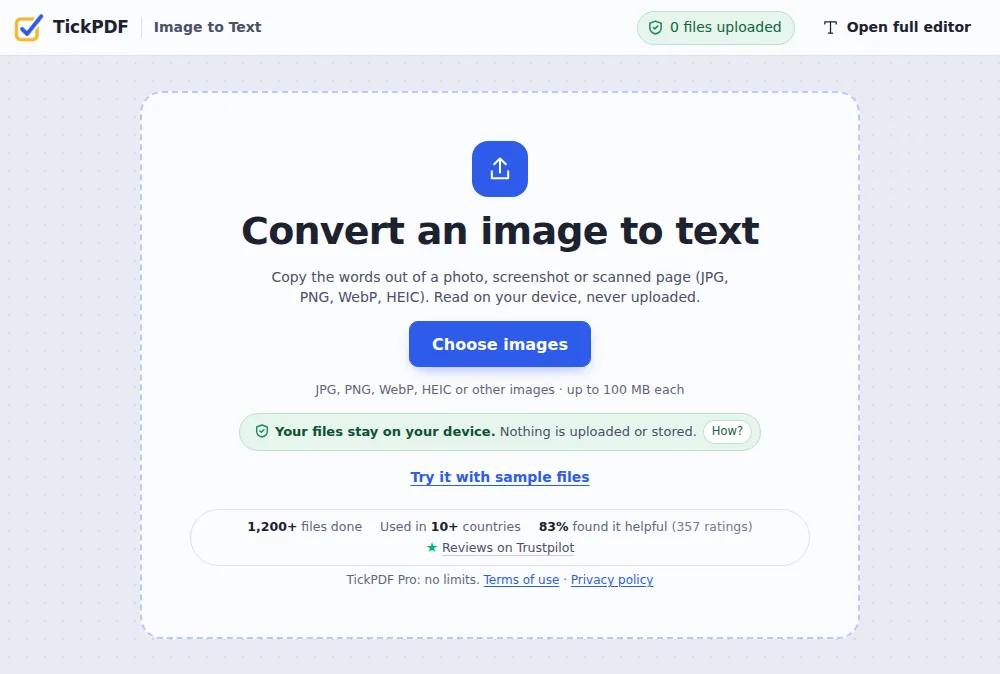
Choose your images
Click Choose images or drop one or more photos or screenshots on the tool above.
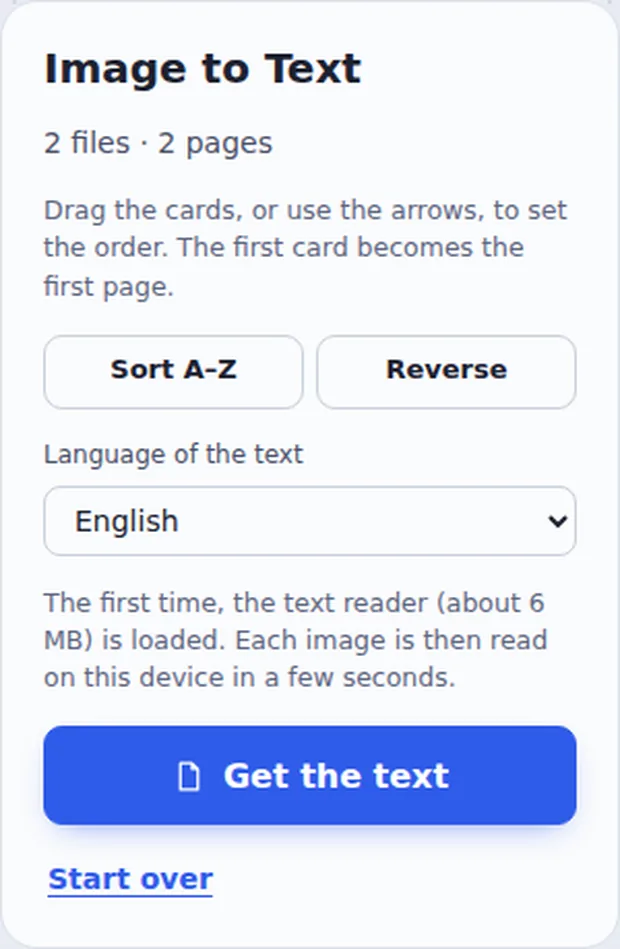
Pick the language
Choose the Language of the text and click Get the text.
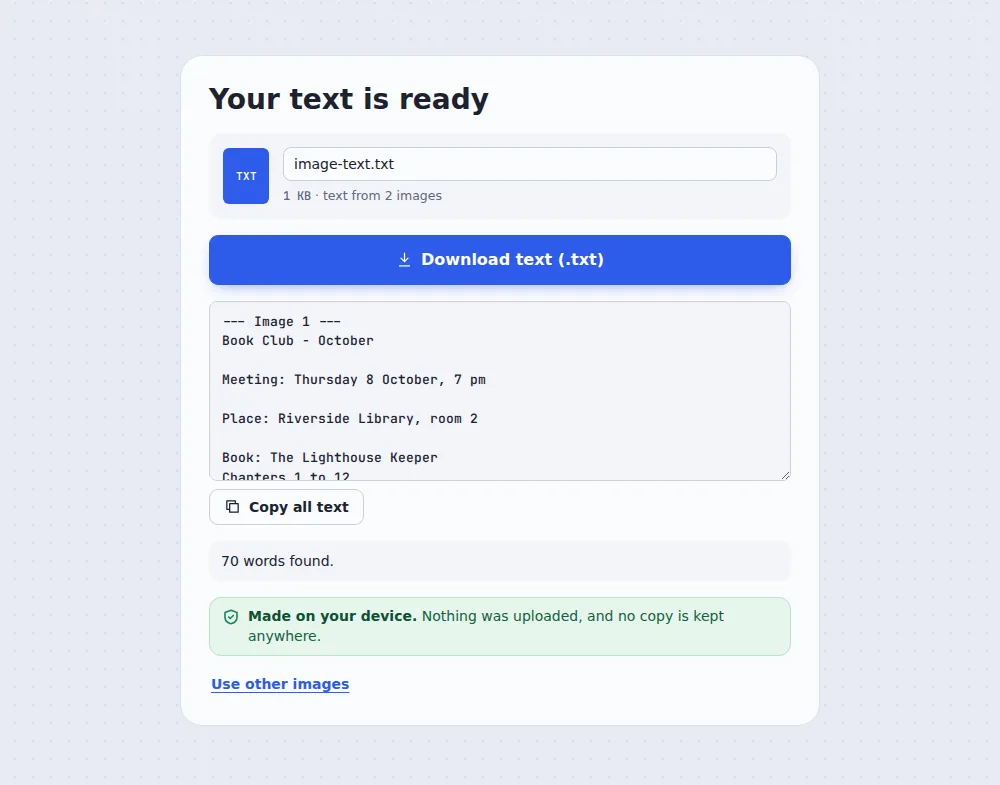
Copy the text
Click Copy all text, or Download text to save a .txt file.
How Image to Text Works
A photo of a page is only coloured dots: a computer cannot search or copy its words. Image to text uses OCR (optical character recognition) to find each line of printed text in the picture and turn it into real letters.
Clear, printed text comes out almost word for word. Photos taken straight on, in good light, read best. Handwriting is usually not recognised.
Several images are read one after another, and their text is joined in the order you put them.
Photos
Pages, notices and labels.
Screenshots
Text from apps and websites.
Scans
Scanned letters and forms.
A Photo of Printed Notes
Typing this out by hand takes minutes. Image to text takes seconds.
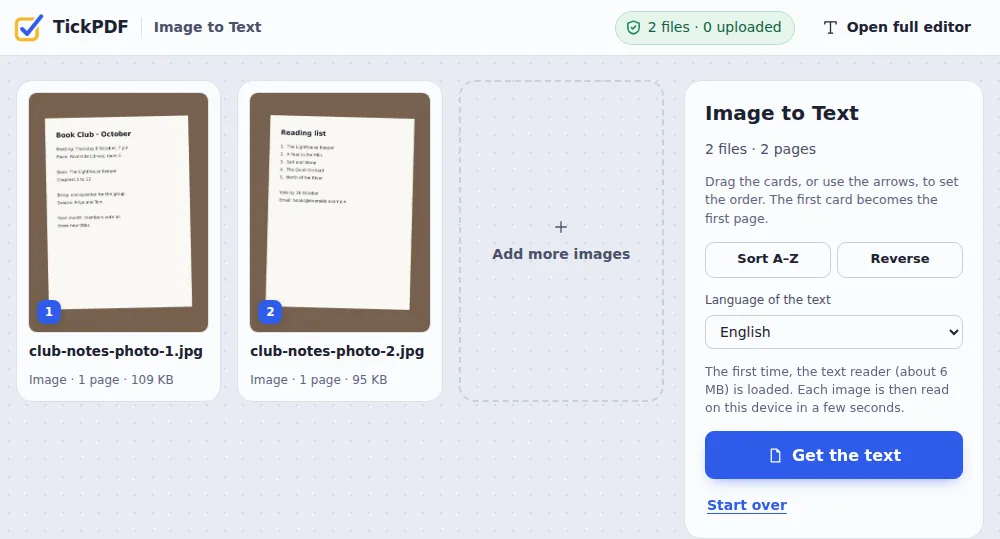
Image to Text or OCR PDF?
Both read printed text; they start from different files.
| Image to text | OCR PDF | |
|---|---|---|
| Starts from | JPG, PNG, WebP, HEIC images | A scanned PDF |
| You get | Plain text to copy | A searchable PDF or a .txt file |
| Best for | Quick copying | Keeping the document |
Private by Design, With No Upload
Photos of letters and IDs are private. TickPDF reads the text inside your own browser tab, so the image never leaves your device.
There is no account and no copy on our side.
- 0files uploadedYour image stays on your device.
- 0copies keptWe never see your pages.
- 0accounts neededOpen the page and start.
Works on iPhone, Android and Computer
- Windows
- Mac
- Linux
- Chromebook
- iPhone
- iPad
- Android
For image to text on a phone, open this page in the browser, take or choose a photo and tap Get the text.
It works the same on Windows, Mac, Linux and Chromebook, with nothing to install.
When People Use This Tool
Any time words are stuck in a picture.
Study notes
Copy text from book pages.
Office work
Reuse text from printed letters.
Screenshots
Grab text an app will not let you copy.
Notices
Save dates and details from a photo.
Labels and cards
Copy codes and addresses.
Old documents
Type-free copies of paper pages.
Pro Tips for Faster Results
- Good lightEven light, no shadows.
- Straight onHold the phone flat above the page.
- Fill the frameBigger letters read better.
- ProofreadCheck names and numbers.
- Many pages?Use Scan to PDF with OCR.
- HandwritingIs usually not recognised.
More PDF Tools
They all run in the same private editor.
OCR PDF
Make scans searchable.
Scan to PDF
Phone photos to a clean PDF.
PDF to Text
Copy all the text out.
JPG to PDF
Turn photos into a PDF.
PDF to JPG
Save pages as images.
PDF Editor
Edit text, sign and annotate.
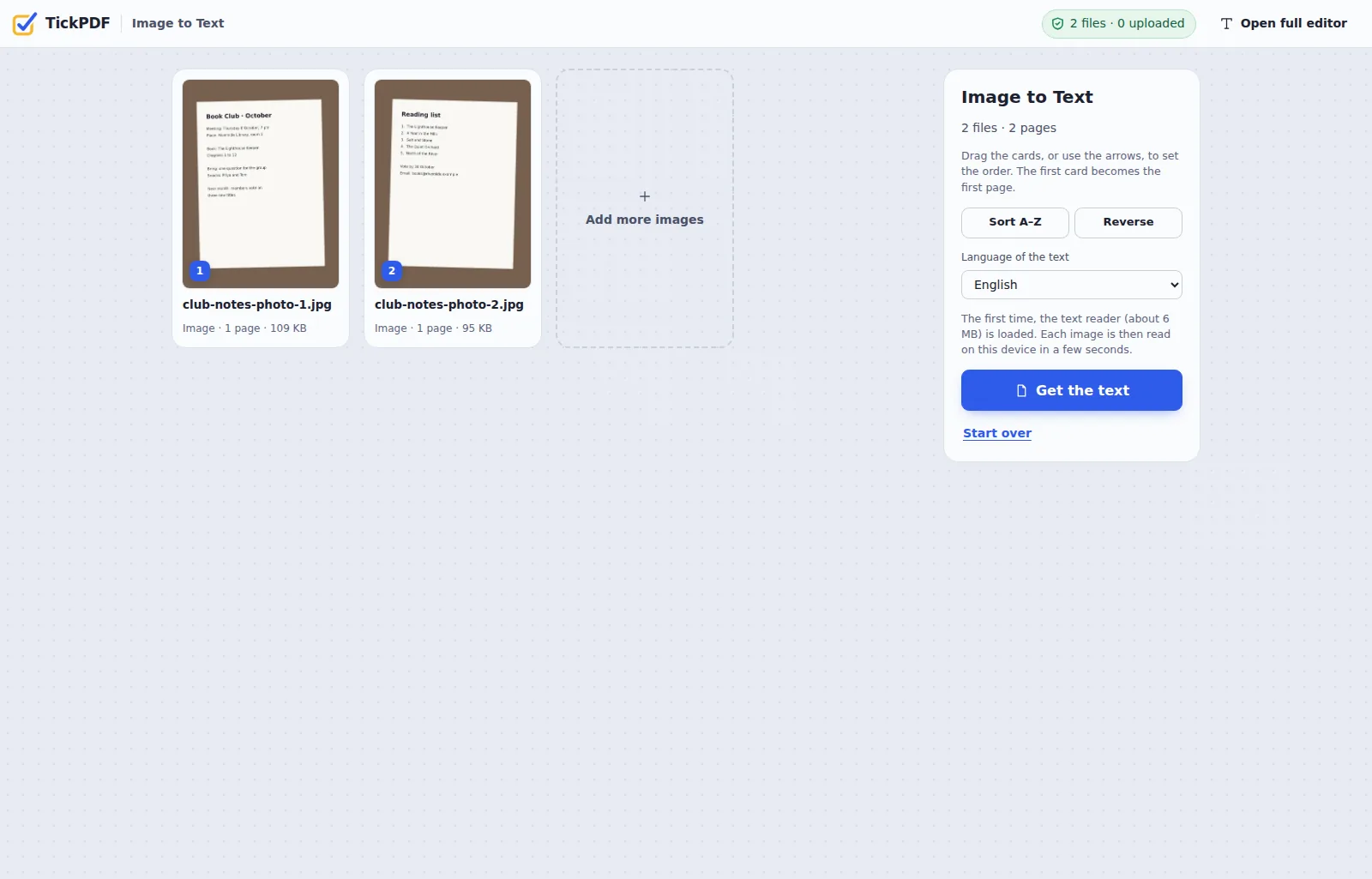
Image to Text: Frequently Asked Questions
Answers to what people ask before they copy text from a picture.
How do I convert an image to text?
Choose your image at the top of this page, pick the language of the text and click Get the text. The words appear in a box: copy them, or download them as a .txt file.
Can I convert image to text for free?
Yes. The free plan works on PDFs up to 50 pages and 20 MB, with 3 downloads a day, no account and no watermark. TickPDF Pro removes these limits.
Which image types work?
JPG, PNG, WebP, GIF, BMP, TIFF and iPhone HEIC photos. You can choose several images at once; their text is joined in the order shown.
How do I convert an image to text on my phone?
Open this page in your phone's browser, tap Choose images, take a photo or pick one, and tap Get the text. There is no app to install.
How accurate is image to text?
Clear, printed text comes out almost word for word. Photos taken straight on in good light work best; blurry, dark or angled photos give more mistakes. Always check names and numbers.
Can it read handwriting?
Usually not. The text reader is made for printed text. Neat block capitals sometimes work, but joined-up handwriting is rarely recognised.
Which languages are supported?
31 languages, including English, Spanish, French, German, Portuguese, Arabic, Chinese, Japanese, Korean, Russian and Indian languages such as Hindi, Bengali, Tamil, Telugu, Marathi, Gujarati, Kannada, Malayalam, Punjabi and Urdu. Pick the language of the text before you start.
Is it safe to use image to text online?
Yes. Your image is not uploaded. It is read inside your browser tab and never sent to our servers, so nobody else sees it.
All PDF Tools (102)
Every TickPDF tool in one place. They run in your browser, so your files are never uploaded.
Most used
Edit 15
Annotate 12
Fill & Sign 8
Organize 22
Convert to PDF 16
Convert from PDF 9
Optimize & Protect 20
No tool matches that. Try another word, or open the PDF editor: it does most jobs in one place.
Online PDF EditorPricingPDF Editor No WatermarkPrivate PDF EditorPDF Editor for MacPDF Editor for WindowsPDF Editor for iPhonePDF Editor for AndroidPDF Editor for Chromebook
Ready to Turn an Image into Text?
No account, no upload and no watermark: choose your image at the top of this page.
Open the toolTickPDF reads the words on your own device. Choose a photo and try image to text today.