
PDF Workflows Online Free
Compress, watermark, number and lock your PDFs in one click, with steps you save for next time.
- No upload
- Up to 6 steps
- Many files at once
- Saved for next time

PDF workflows put several PDF jobs in a row. Choose your files, line up the steps (for example compress, add a watermark, then add page numbers) and run them all at once. Save the steps with a name, and next time it is one click. Everything happens in your browser: nothing is uploaded.
How to Run a PDF Workflow
Set it up once, then reuse it whenever the same job comes back.
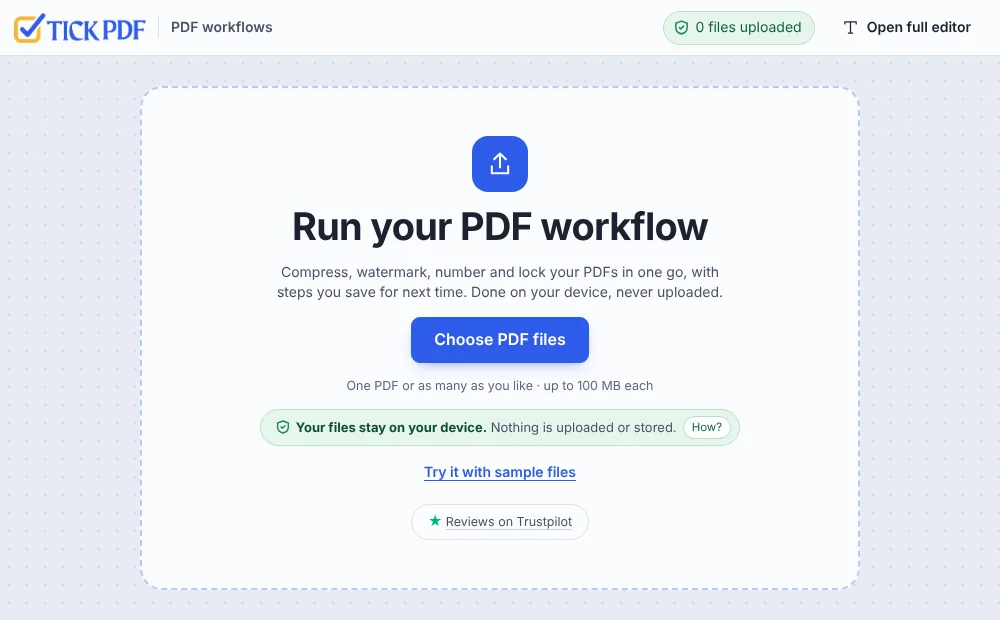
Choose your PDFs
Click Choose PDF files and pick one PDF or many, or drop them on the page.
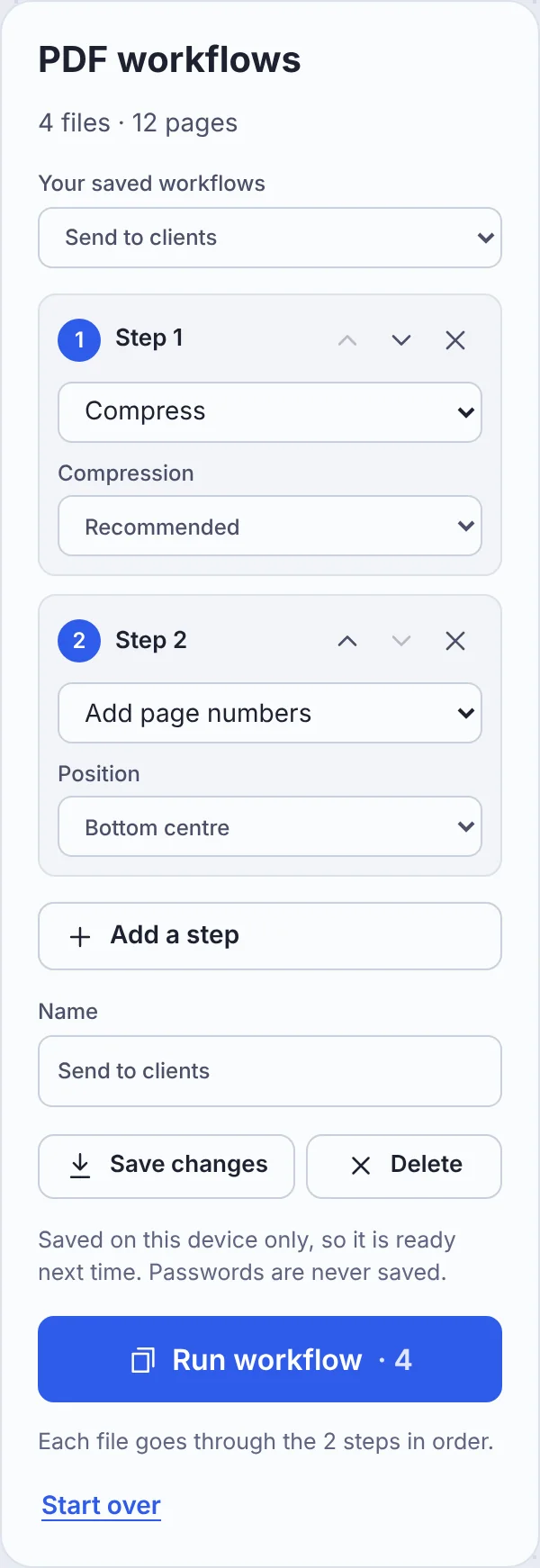
Line up the steps
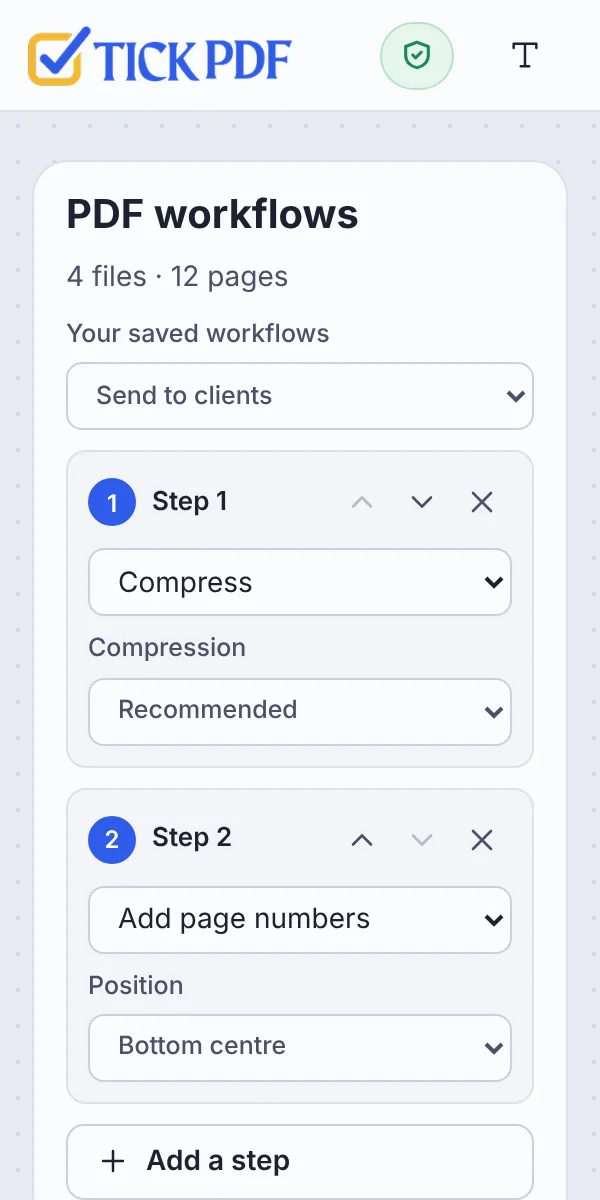
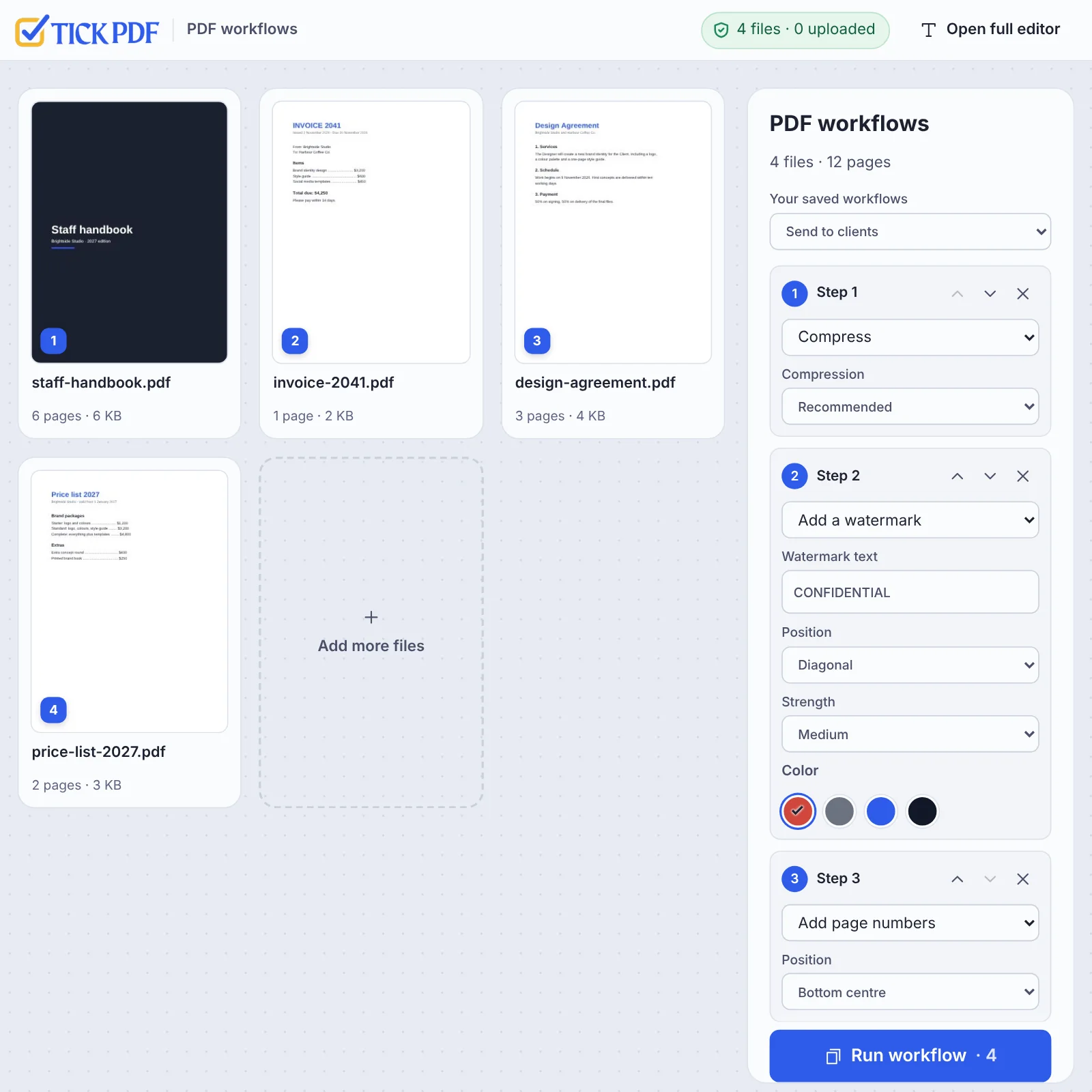
Pick what each step does and use Add a step for more. Use the arrows to change the order. Type a name and click Save workflow to keep it, or choose one from Your saved workflows.
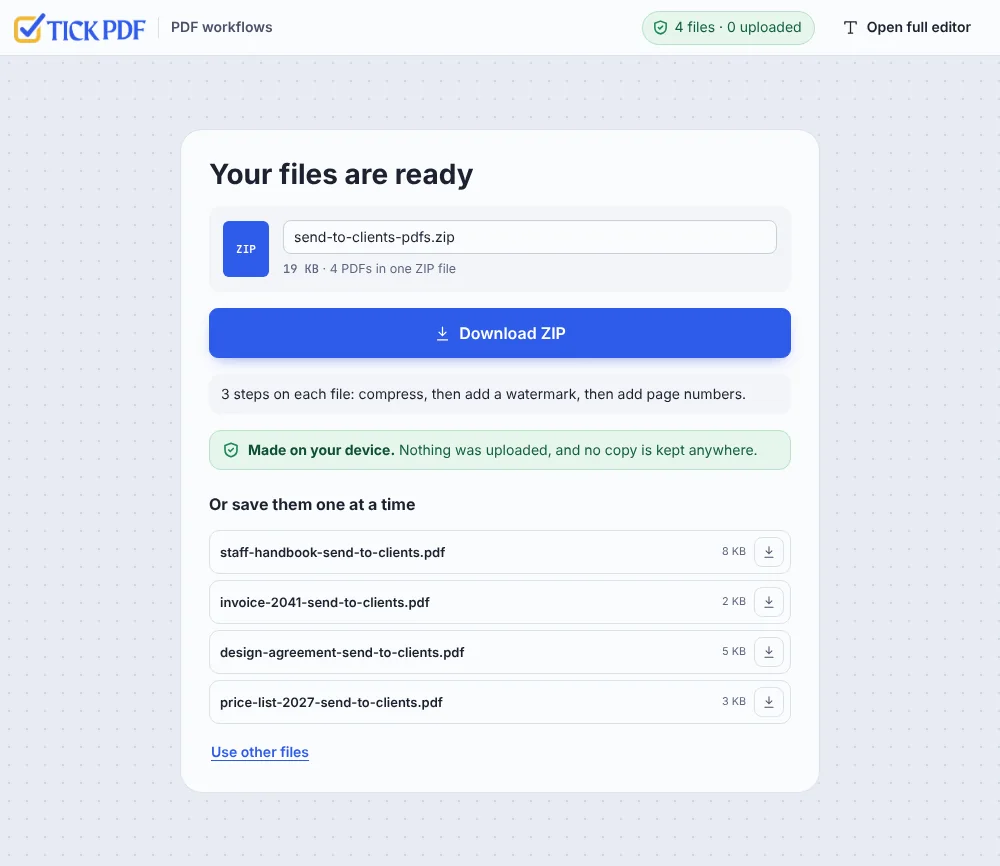
Run and download
Click Run workflow. Each file goes through every step in order. Download one ZIP, or save the files one at a time.
What Is a PDF Workflow?
Many PDF jobs come in the same few steps every time. Before you send a proposal to a client, you make it smaller, stamp it CONFIDENTIAL and number the pages. Done with one tool at a time, that means opening, downloading and opening again, three times for every file.
A PDF workflow does all of it in one go. You set the steps once, and every file you choose goes through them in order: the output of one step goes straight into the next.
Save the steps with a name such as Send to clients or Monthly invoices, and the next time the job comes round it is one click.
In order
Up to six steps, one after another.
Many files
One PDF or a whole folder.
Saved
Ready again next time on this device.
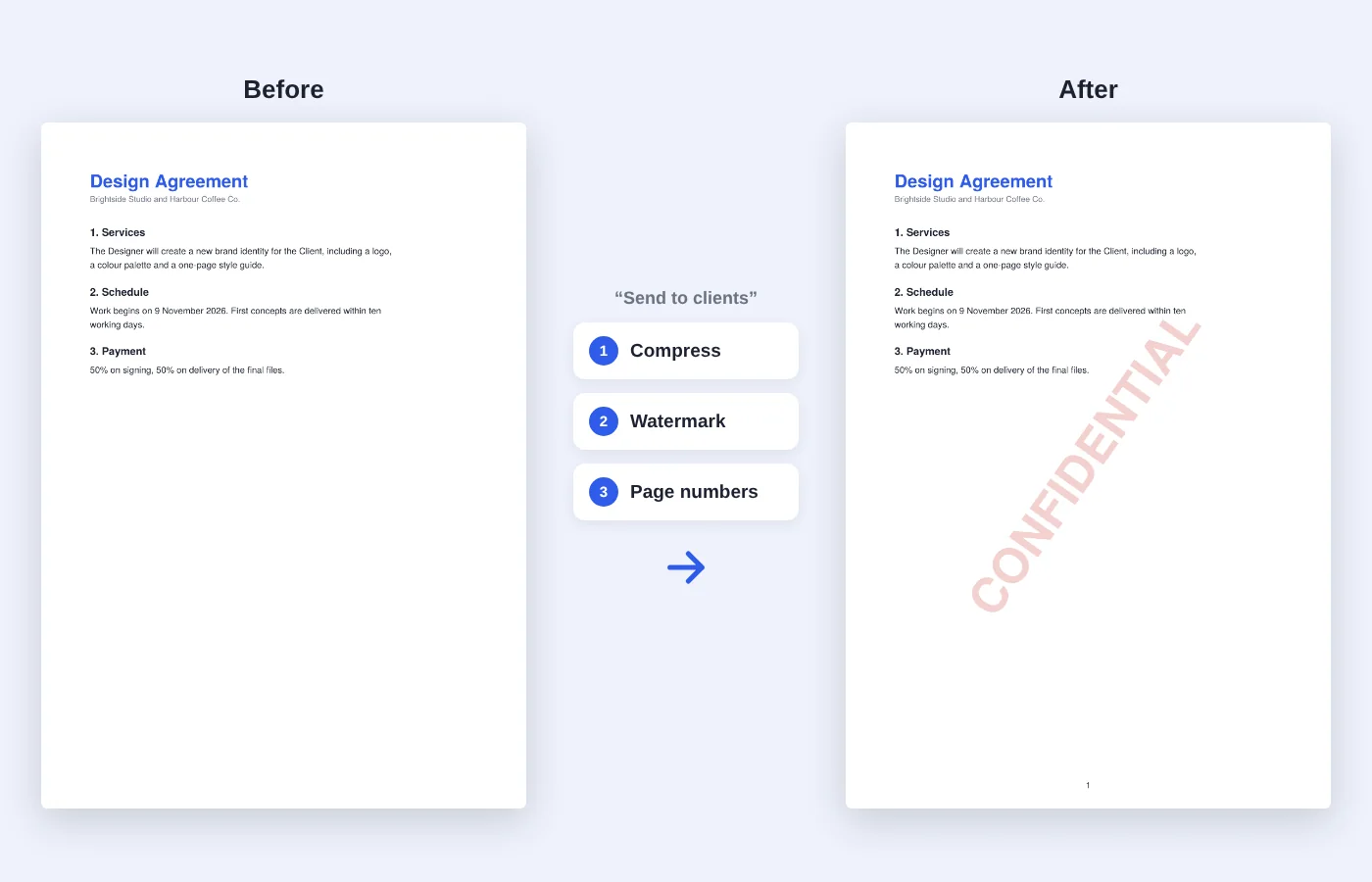
One Workflow, Three Jobs Done
A design agreement run through a workflow called Send to clients: compressed, stamped CONFIDENTIAL and numbered.
Eight Steps to Build Your Workflow
Mix them in any order. A workflow can have up to six steps.
| Step | What it does |
|---|---|
| Compress | Makes the file smaller. Pick light, recommended or strong. |
| Add a watermark | Text such as CONFIDENTIAL or DRAFT, with position, strength and colour. |
| Add page numbers | At the top or bottom, left, centre or right. |
| Rotate pages | A quarter turn left or right, or upside down. |
| Black and white | Turns colour pages grey. Text stays sharp and can still be selected. |
| Add a password | Locks the file. Always the last step. |
| Remove hidden details | Takes out the title, author, software and dates stored in the file. |
| Flatten forms and comments | Filled-in forms and comments become a fixed part of the page. |
One Tool at a Time, Batch or Workflow
Pick the one that fits the job.
| PDF Workflows | Batch PDF Editor | One tool at a time | |
|---|---|---|---|
| Jobs per run | Up to 6, in a row | 1 | 1 |
| Files per run | One or many | One or many | One |
| Saved for next time | Yes, on this device | No | No |
| Files uploaded | None | None | None |
PDF Workflows Without Uploading
Most online PDF tools upload every file to their servers, once for each job. TickPDF runs every step of your workflow inside your browser, so contracts, invoices and payslips never leave your computer or phone.
Your saved workflows stay in your browser too. There is no account and no copy on our side.
- 0files uploadedEvery step runs on your device.
- 0copies keptWe never see your documents.
- 0passwords savedYou type it each time.
Run Your Workflow on Any Device
- Windows
- Mac
- Linux
- Chromebook
- iPhone
- iPad
- Android
Open this page in Chrome, Edge, Safari or Firefox, choose your PDFs and run the steps. On a phone, the steps come first and your files are listed below them.
Saved workflows belong to the browser you saved them in, so save your favourite ones on each device you use.
Workflows People Save
Any job you do the same way every week is worth saving.
Sending to clients
Compress, watermark CONFIDENTIAL, number the pages.
Invoices and statements
Remove hidden details, then add a password.
Legal bundles
Flatten forms, then add page numbers.
School handouts
Black and white, then compress for email.
HR documents
Remove hidden details, number, lock.
Scanned paperwork
Rotate, compress, then number the pages.
Tips for Better PDF Workflows
- Password lastLocked files can’t be changed by later steps.
- Clear namesName it after the job, like Monthly invoices.
- Try one file firstCheck the result, then run the rest.
- Clean before sendingAdd Remove hidden details to client workflows.
- Same browserSaved workflows live in the browser you used.
- Big foldersTickPDF Pro has no file limit.
More PDF Tools
They all run in the same private editor.
Batch PDF Editor
One job on many files.
Compress PDF
Make the file smaller.
Watermark PDF
Stamp text on every page.
Add Page Numbers to PDF
Number every page.
Protect PDF
Lock it with a password.
Merge PDF
Join files into one document.
PDF Workflows: Frequently Asked Questions
Answers to what people ask before they set up a PDF workflow.
What is a PDF workflow?
A PDF workflow is a list of steps that run one after another on your PDFs, for example compress, then add a watermark, then add page numbers. You set the steps once, and every file you choose goes through all of them in one click.
Can I use PDF workflows for free?
Yes. The free plan runs a workflow on 2 files at a time, with 3 downloads a day, no account and no watermark. TickPDF Pro runs it on as many files as you like.
Can I save a workflow and use it again?
Yes. Give the workflow a name and click Save workflow. Next time, pick it from Your saved workflows, choose your files and click Run workflow. You can change a saved workflow or delete it.
Where are my saved workflows kept?
In your web browser, on your own device. They are not sent to us or stored in an account, so they are not shared with your other devices. Clearing this site's data in your browser removes them.
Are passwords saved with a workflow?
No. If a workflow adds a password, you type the password each time you run it. It is never saved.
How many steps can a workflow have?
Up to six. The steps are compress, add a watermark, add page numbers, rotate pages, black and white, add a password, remove hidden details, and flatten forms and comments.
Why does the password step have to be last?
A PDF that is locked with a password cannot be changed by the steps after it. So Add a password must be the last step, and it can be used only once in a workflow.
Can I run a workflow on many PDFs at once?
Yes. Choose one PDF or many. One file comes back as a PDF. Several files come back as one ZIP, and you can also save them one at a time. Each file keeps its own name, with the workflow name added.
Is it safe to use PDF workflows online?
Yes. Your files are not uploaded. Every step runs inside your browser tab, and nothing is sent to our servers, so nobody else sees your documents. Close the tab and nothing is left behind.
What is the difference between PDF Workflows and the Batch PDF Editor?
The Batch PDF Editor does one thing to many files. PDF Workflows does several things in a row to one file or many, and saves the steps for next time.
All PDF Tools (102)
Every TickPDF tool in one place. They run in your browser, so your files are never uploaded.
Most used
Edit 15
Annotate 12
Fill & Sign 8
Organize 22
Convert to PDF 16
Convert from PDF 9
Optimize & Protect 20
No tool matches that. Try another word, or open the PDF editor: it does most jobs in one place.
Online PDF EditorPricingPDF Editor No WatermarkPrivate PDF EditorPDF Editor for MacPDF Editor for WindowsPDF Editor for iPhonePDF Editor for AndroidPDF Editor for Chromebook
Ready to Run Your First Workflow?
No account, no upload and no watermark: choose your PDFs at the top of this page.
Open the toolTickPDF runs your PDF jobs in a row on your own device. Set up a PDF workflow once and use it every week.