
Password Protect PDF Files Online Free
Password protect PDF files in seconds: lock them so only people with the password can open them.
- No upload
- AES-256
- No sign-up
- Works in every reader

Password protect PDF files before you email or share them. Type a password, choose whether people may print, copy or edit, and download a file locked with AES-256 encryption. It is locked on your device, so the document and the password are never uploaded.
How to Password Protect PDF Files
It takes less than a minute to password protect PDF files.
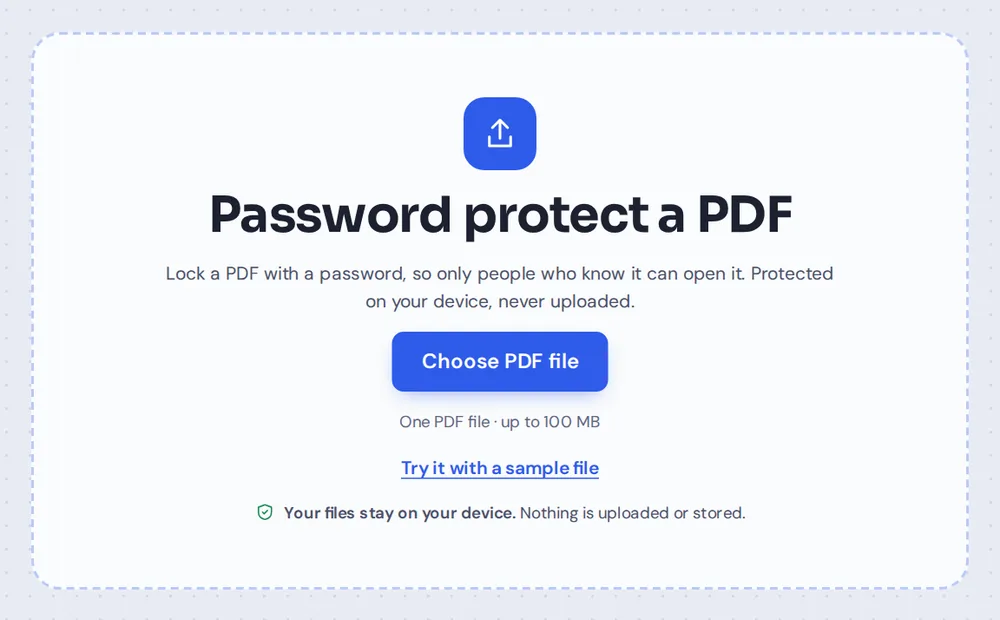
Choose your PDF
Click Choose PDF file or drop the document on the tool above.
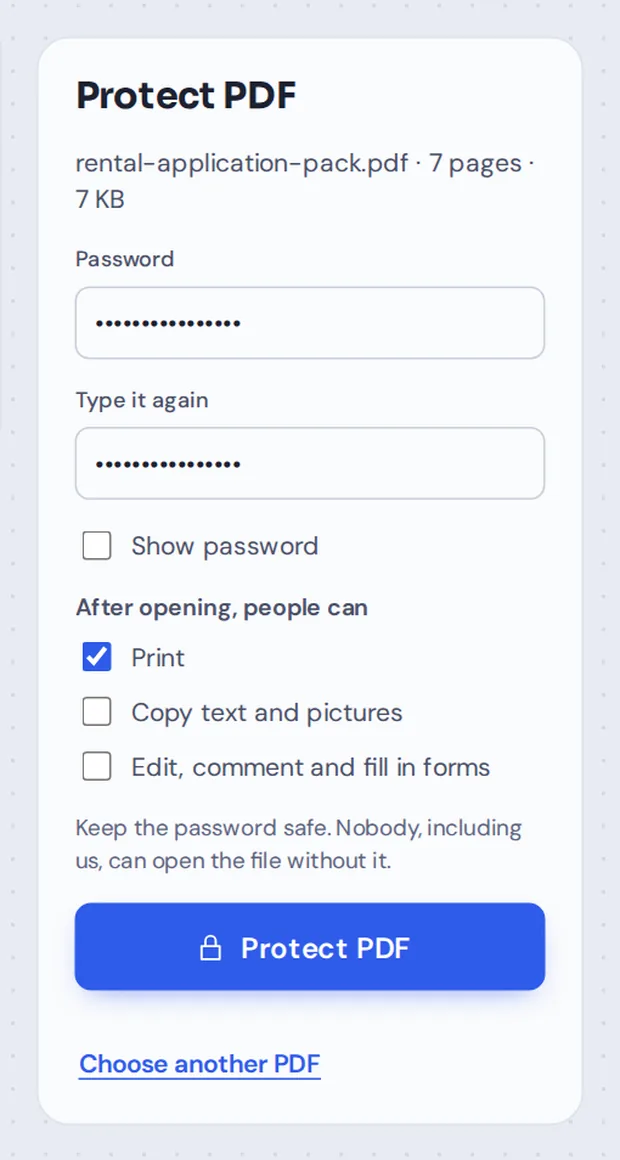
Set a password
Type the password twice. Under After opening, people can, choose whether they may print, copy text or edit. Then click Protect PDF.
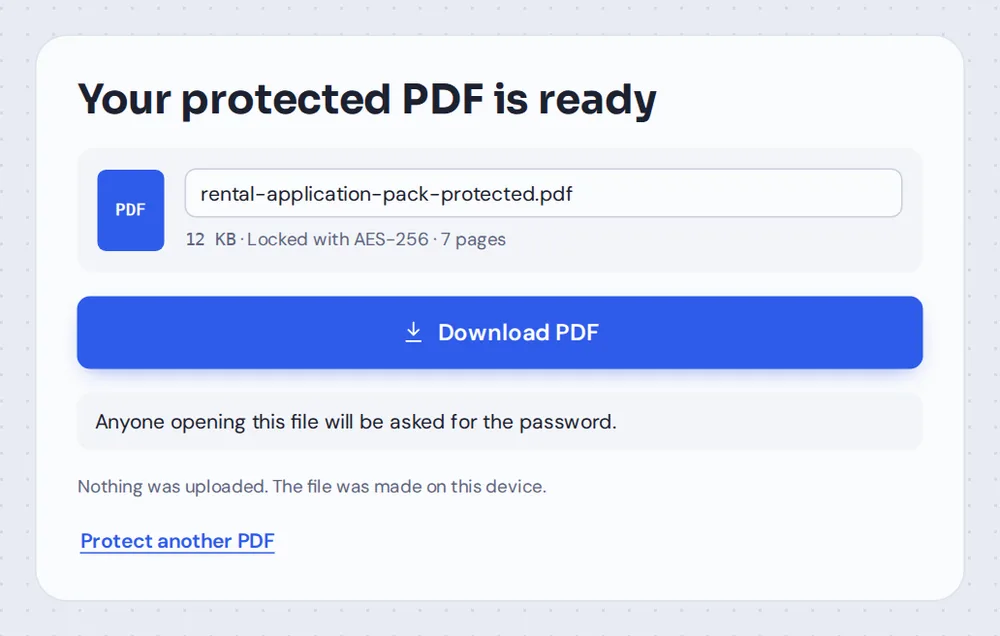
Download the locked file
Click Download PDF. Anyone who opens the file is asked for the password first.
What Happens When You Password Protect PDF Files?
When you password protect PDF files here, the whole document is encrypted: every page, every picture and the document details. Without the password it is just unreadable data, even for someone who has the file.
The tool uses AES-256, the strongest encryption in the PDF standard. It works in all current PDF readers, including Adobe Acrobat, Apple Preview, and the viewers built into Chrome, Edge and Firefox.
You can also set what people may do after they open it. Untick printing, copying or editing, and readers like Acrobat will keep people from doing those things.
Open password
Needed to see anything in the file.
AES-256 encryption
The strongest option in the PDF standard.
Permissions
Allow or block printing, copying and editing.
What Each Permission Does
Set them before you password protect PDF files.
| When ticked | When unticked | |
|---|---|---|
| People can print the document | Printing is turned off in readers that respect it | |
| Copy text and pictures | People can copy and paste from it | Copying is turned off |
| Edit, comment and fill in forms | People can change and annotate it | The document is read-only |
Choosing a Strong Password
The encryption is strong when you password protect PDF files; the password is the part you control.
Make it long
Length beats clever tricks.
- 10 characters or more
Three or four words with a number is easy to type and hard to guess.
- Not your name or birthday
Anything someone could look up is easy to guess.
Share it safely
Keep the password and file apart.
- Send it separately
Email the file, then send the password by text message or phone.
- One file, one password
Use a different password for each important document.
Keep a copy
There is no recovery.
- Save your password
A password manager is the safest place.
- Keep the original
Store the unprotected original somewhere safe, too.
Private
Locked on your device.
- No upload
The document is encrypted inside your browser.
- We never see the password
It is not sent anywhere or stored.
Password Protect PDF Files Without Uploading Them
It makes little sense to upload a private document to a website in order to protect it. With TickPDF you do not have to: the file is encrypted inside your own browser tab, and neither the document nor the password is ever sent to us.
Close the tab and nothing is left behind.
- 0files uploadedYour PDF stays on your device.
- 0passwords storedWe never see it.
- 0accounts neededOpen the page and start.

Protect PDF Files on iPhone, Android or Computer
- Windows
- Mac
- Linux
- Chromebook
- iPhone
- iPad
- Android
Open this page in your phone's browser to password protect PDF files: choose the PDF, type the password twice and tap Protect PDF.
It works the same on Windows, Mac, Linux and Chromebook, with nothing to install.
What People Lock With a Password
Password protect PDF files like these, which only the right person should see.
Rental applications
Payslips, bank statements and IDs sent to a landlord.
Contracts
Agreements shared before they are signed.
Medical records
Test results and letters for insurers or family.
Tax documents
Returns and statements sent to an accountant.
HR files
Payslips and reviews sent to staff.
Exams
Tests shared with teachers before the exam day.
Tips Before You Password Protect PDF Files
- Use a long passwordThree or four words with a number is strong and easy to type.
- Send the password separatelyNever put the password in the same email as the file.
- Write it down safelyNobody, including us, can recover a lost password.
- Untick editingFor contracts and official papers, keep them read-only.
- Compress firstMake big scans smaller before you password protect PDF files.
- Test itOpen the protected file once to check the password works.
More PDF Tools
Like the tool to password protect PDF files, they all run in the same private editor.
Compress PDF
Make the file smaller first.
Watermark PDF
Mark pages as CONFIDENTIAL.
Sign PDF
Sign before you lock it.
Whiteout PDF
Hide details you do not want to share.
Merge PDF
Join files into one before protecting.
PDF Editor
Make last changes first.

Password Protect PDF: Frequently Asked Questions
Answers to what people ask before they lock a PDF.
How do I password protect a PDF?
Choose your PDF at the top of this page, type a password twice and click Protect PDF. Download the new file: it asks for the password every time it is opened.
Can I add a password to a PDF for free?
Yes. The free plan works on PDFs up to 50 pages and 20 MB, with 3 downloads a day, no account and no watermark. TickPDF Pro removes these limits.
How do I encrypt a PDF?
Protecting a PDF with a password encrypts it. This tool uses AES-256, the strongest encryption the PDF standard offers, so the pages cannot be read without the password.
How do I protect a PDF from editing?
Before you protect the file, untick "Edit, comment and fill in forms" (and "Copy text and pictures" if you like). Readers such as Adobe Acrobat then keep people from changing the document. These limits are a request that honest PDF readers follow; the password itself is what keeps the file private.
Can I password protect a PDF online?
Yes. The tool runs in your web browser, and the file is locked on your own device. It is never uploaded, so the password and the document stay with you.
How do I remove a password from a PDF?
You need the password. Open the file in your PDF reader, type the password, then save a copy without it, for example with Print → Save as PDF in Chrome. Keep the protected original somewhere safe.
Can I protect a PDF on my phone?
Yes. Open this page in your phone's browser, choose the PDF, type the password twice and tap Protect PDF. There is no app to install.
Is a password-protected PDF secure?
Yes, with a good password. AES-256 cannot be broken by guessing the key, so the weak point is the password itself. Use at least 10 characters mixing words, numbers and symbols, and send the password separately from the file.
Ready to Password Protect PDF Files?
No account and no upload: choose your PDF at the top of this page.
Open the toolTickPDF locks your documents on your own device with AES-256. Choose your file and password protect PDF files today.